
Mastering Careers & Skills
IT Help-Desk Certificate (CompTIA A+) · free sample from the book itself
Part 0 — Foundations · Exam of record: Both (orientation for Core 1 objective 3.5 and Core 2 objective 4.4)
On your first morning as an IT support technician, the tickets will not wait for you to feel ready. Picture the scene this book will return to all the way through: a desk, a desktop computer that will not start, a user who has a presentation in an hour, and you — kneeling beside the machine with a screwdriver, expected to know what everything inside the case is called, which cable does what, and how to touch any of it without making things worse.
Nothing about that scene requires genius. It requires a map. Every computer you will ever service — desktop, laptop, tablet, phone, server — is built from the same small set of ideas: parts that process, parts that remember, parts that store, parts that connect, and a supply of power that feeds them all. The names are standard across the whole industry, and they are the names the CompTIA A+ exams use. This chapter teaches those names from zero. It assumes you have never opened a computer case. By the end of it you will be able to walk around any machine, point at each major component, say what it does, say what happens when it fails, and handle all of it without damaging it — including protecting it from the one threat every beginner carries into the room without knowing: the static electricity on your own body.
A note on how this book is organized, because it matters from page one. A+ is a two-exam credential: CompTIA publishes that a candidate must pass both Core 1 (exam code 220-1201) and Core 2 (exam code 220-1202) to earn the one certification. This book teaches the current series — the V15 series, objectives Version 2.0 (© 2024, CompTIA) — and nothing else. Where a fact in this chapter is CompTIA's (an exam shape, a weight, a policy), the text says so at the point of statement. Where guidance is this book's own, it is labeled as this book's guidance. That discipline — knowing whose voice is speaking — is itself a professional skill, and the exams reward it.
A computer is a machine that takes input, processes it, stores it, and produces output. That four-word loop — input, processing, storage, output — describes a phone checking the weather and a server running a company's accounts with equal accuracy. Everything else in this book is detail hung on that loop.
Hold the loop in mind as you meet the parts. Each part exists because the loop needs it. When a machine fails, the loop breaks at a specific point, and the technician's job — the whole of Part VII of this book — is to find which point broke. You cannot find a break in a loop you cannot picture. That is why the foundations come first.
Before the tour begins, learn to extract it from paper, because in practice you will meet most machines first as a listing, a label, or an asset record — and everything in that document is a part you are about to study, wearing its specification. Take a typical listing line apart, clause by clause. A processor named with a speed in gigahertz (GHz) is telling you its clock rate — how many cycles of work it attempts per second — and Chapter 2 will teach you to treat that number as one fact among several, never as a verdict on speed by itself. A memory figure such as "16 GB RAM" states the size of the machine's working memory; the letters after it, in fuller listings, name its generation, and generation is destiny — a board accepts the generation it was built for and no other. A storage figure such as "512 GB SSD" names both the keeping memory's size and its kind: SSD, a solid-state drive, keeps data in flash memory with no moving parts, while HDD, a hard disk drive, keeps it on spinning platters; the kind predicts the machine's responsiveness more honestly than the size predicts anything. Ports appear as counts ("two USB-C, four USB-A"), displays as a resolution ("1920 × 1080"), and the power supply, when it appears at all, as a wattage. Two reading habits will serve you for the whole book. First, every number has a unit and every unit has a family: Chapter 2 exists because a gigabyte from a manufacturer and a gigabyte as an operating system reports it are not the same quantity, and the reader who knows that on page one is never confused by a "shrinking" drive again. Second, an absent line is information: a listing that does not name the power supply, the display's refresh rate, or the wireless standard is telling you those are ordinary at best — sales documents print their strengths. Read this chapter's tour, then, with a double purpose: learn what each part is, and learn what its line in a listing is claiming, so that the first machine you are ever asked to assess — on a bench, in a ticket, or in an exam stem — arrives as a document you already know how to read.
Open a desktop computer's case — in words, for now; the safety rules come in §1.6 before any real screwdriver work — and you will see a large flat circuit board filling one side of the box, smaller boards and modules plugged into it, cables running between everything, a metal box in one corner, and fans. Here is each resident, in the order a technician's eye learns to find them.
The motherboard (also called the main board or system board) is the large circuit board to which every other component connects, directly or by cable. It carries traces — thin copper pathways printed into the board — that move data and power between components, and it carries the chipset, support circuitry that manages traffic between the processor, memory, storage, and the outside world.
Three facts about motherboards carry exam weight from the very first domain onward. First, motherboards come in standard sizes called form factors; the common desktop family runs from the full-size ATX board down through the smaller micro-ATX to the compact Mini-ITX, and a case and a board must match — a board physically cannot mount in a case drilled for a different pattern, and its rear ports will not line up with the case's openings. Second, the motherboard decides what the machine can ever become: its sockets and slots determine which processors fit, which memory generation it takes, and which expansion cards it can hold. Third, the motherboard is where the machine's firmware lives — the low-level software, introduced below, that starts the machine before any operating system loads.
Figure P-01 — ATX motherboard, fully labeled.
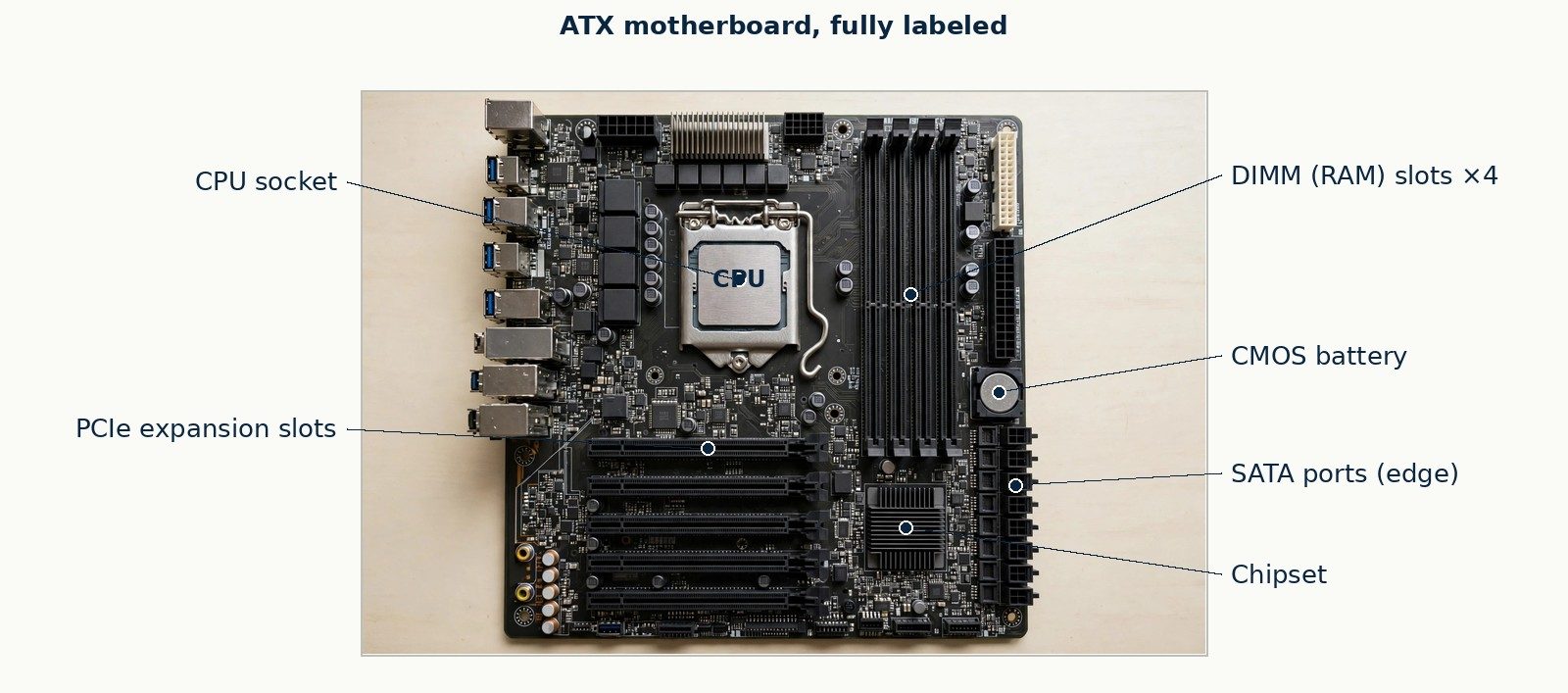
CPU socket, DIMM slots, PCIe slots, chipset, rear I/O panel, 24-pin ATX power connector, SATA ports, front-panel header, M.2 slot
Figure P-02 — micro-ATX and Mini-ITX boards at scale beside ATX, mounting-hole patterns compared.
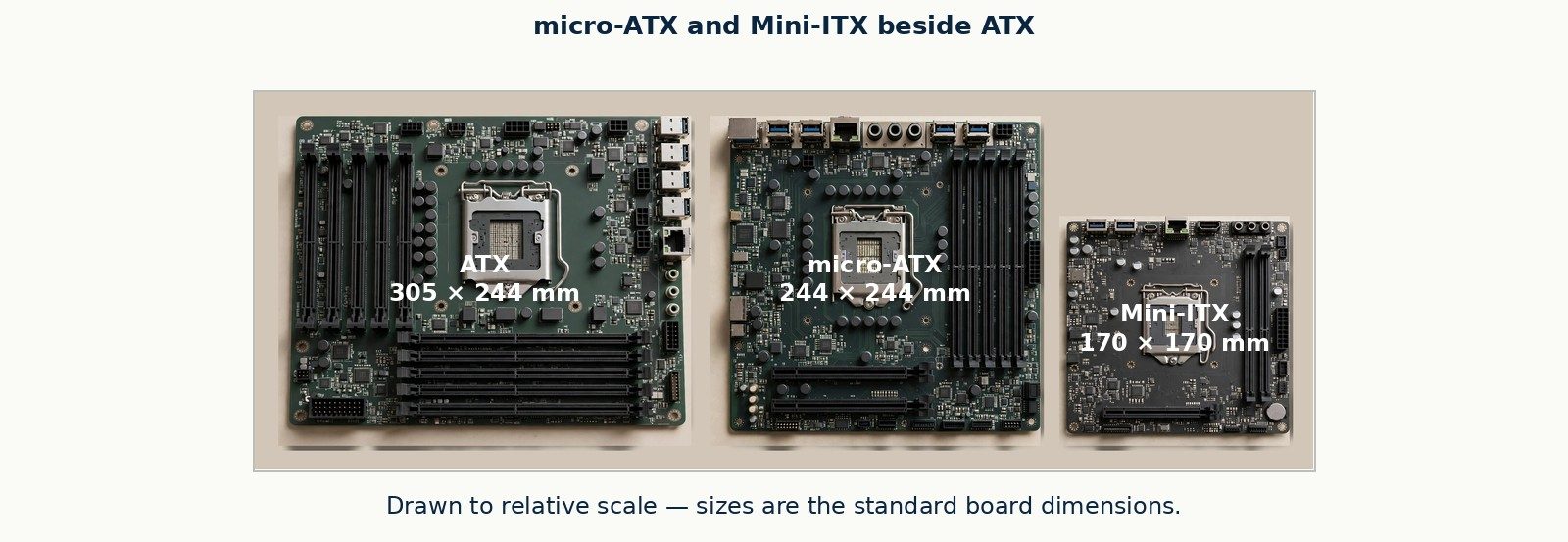
micro-ATX and Mini-ITX boards at scale beside ATX, mounting-hole patterns compared
The CPU — central processing unit, often just "the processor" — is the chip that executes instructions: the arithmetic and decisions that processing consists of. It sits in a socket on the motherboard, held by a retention mechanism, with a cooling assembly pressed on top of it (§1.2 continues below). A CPU is identified by its maker and family — Intel and AMD are the two desktop makers the objectives assume — and by the socket it fits: a processor built for one socket does not fit another, which is why "will this CPU work in this board?" is answered from the board's socket and support list, never from hope.
Two CPU ideas matter at foundation level. The first is speed, measured in gigahertz (GHz) — billions of cycles per second. A cycle is one tick of the processor's internal clock, and more ticks per second generally means more work per second. But clock speed alone does not rank processors across families: a newer design does more work per tick than an older one, so a current chip at a lower GHz figure can outrun an older chip at a higher one. Where this book prints a processor clock figure, it prints it in GHz, and it treats GHz as one fact about a chip, never the whole verdict — that caution is deliberate, and it is how the trade itself talks. The second idea is cores: a modern CPU contains several independent processing units, called cores, on one chip, so it can genuinely do several things at once rather than merely switching between them quickly. The details of CPU families, sockets, and features belong to Chapter 16; the foundation is simply this — the CPU is where instructions are executed, it generates serious heat while doing so, and it fits exactly one kind of socket.
Every watt a CPU consumes becomes heat, and heat destroys electronics — slowly by aging them, quickly by forcing the processor to slow itself down to survive (a protective behavior called thermal throttling) or to shut off entirely. So every processor wears a cooling assembly. The common form is a heat sink and fan: a finned metal block that spreads heat into a large surface area, with a fan moving air across the fins. Between chip and heat sink sits a thin layer of thermal paste (or, in some assemblies, a thermal pad), filling the microscopic gaps so heat can cross from chip to metal efficiently. Some machines, mostly high-performance desktops, use liquid cooling: a block on the CPU, a pump, tubes, and a radiator with fans, moving heat away in coolant instead of air alone.
Figure P-05 — heat sink and fan air cooler, fins, fan, and mounting shown.
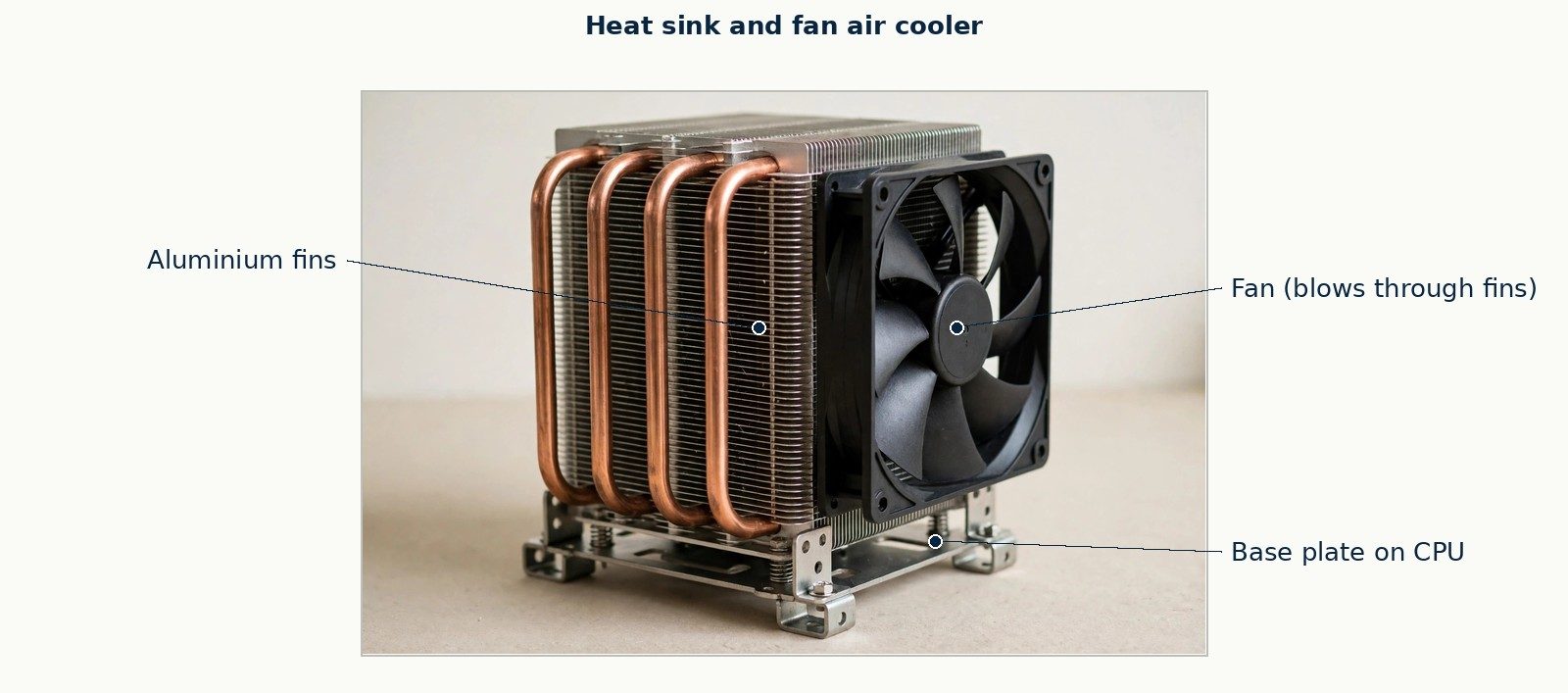
heat sink and fan air cooler, fins, fan, and mounting shown
Figure P-06 — liquid-cooling block, pump, and radiator.
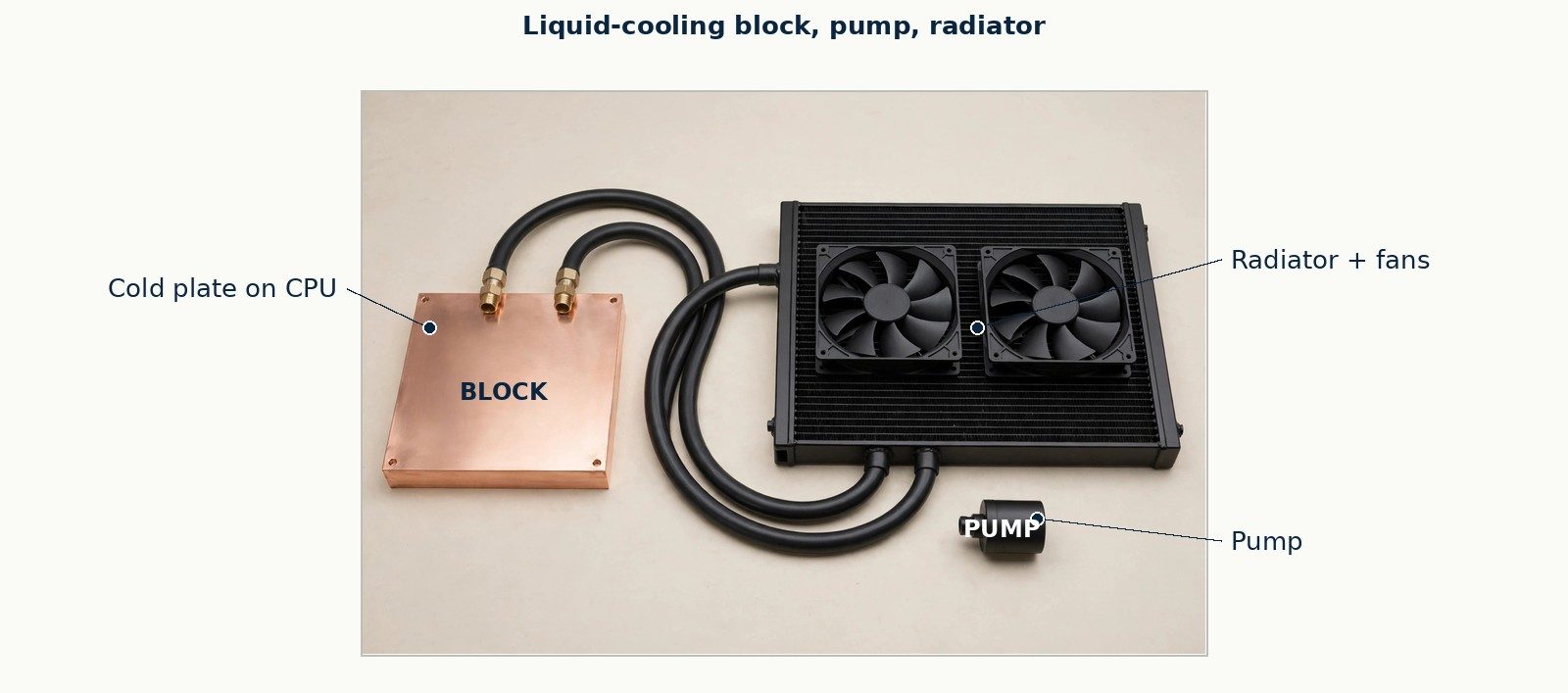
liquid-cooling block, pump, and radiator
Figure P-07 — thermal paste and thermal pads.
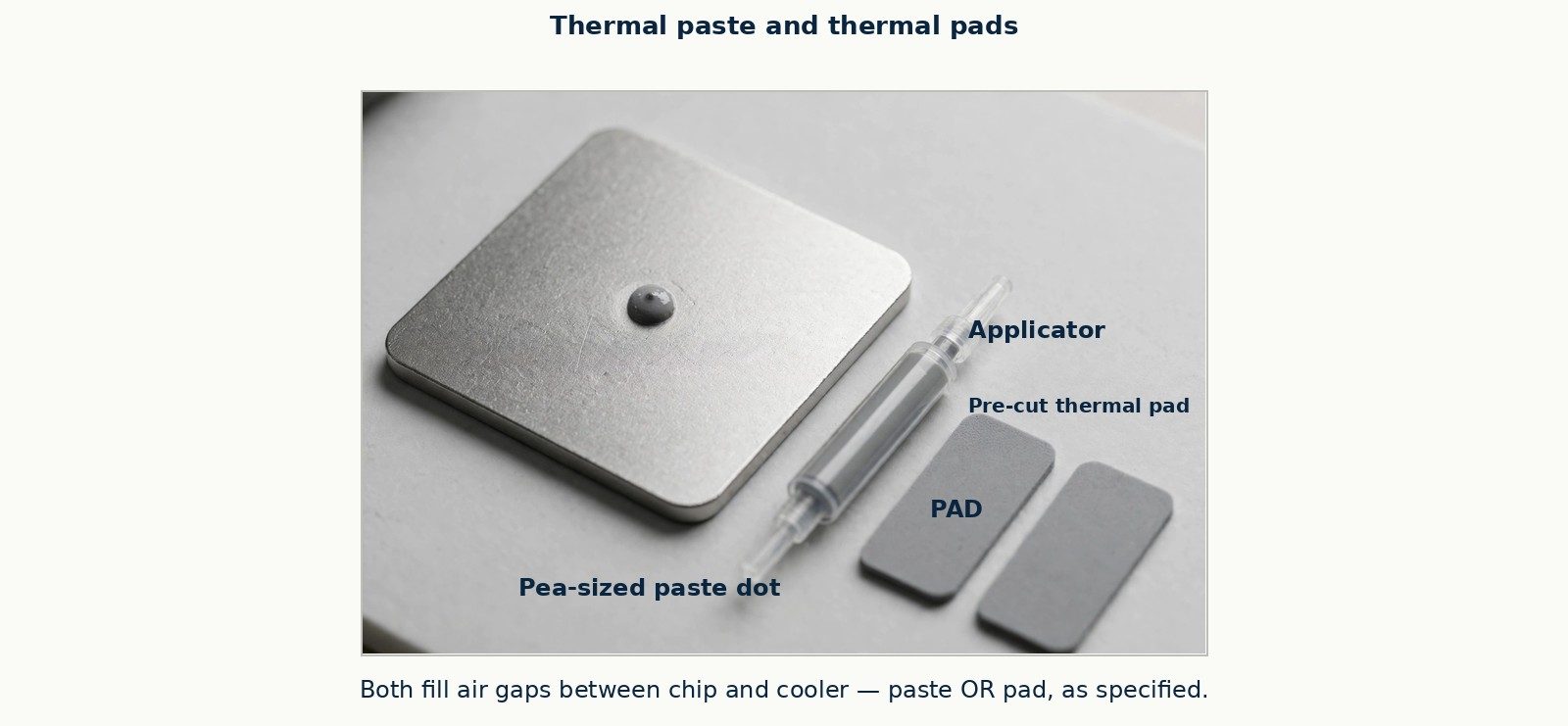
thermal paste and thermal pads
For a beginner, the working rules are three. Cooling is not optional decoration — a machine run without its heat sink properly seated can overheat in seconds. Fans fail, vents clog with dust, and paste dries out over years, so "the machine shuts down after a few minutes, or slows down under load" is a cooling-shaped symptom until proven otherwise. And a fan that is noisy, grinding, or stopped is a finding to report, not a detail to ignore.
RAM — random-access memory — is the machine's short-term working space. When you open a document, the document is copied from storage into RAM, because the CPU works on data held in RAM at speeds storage cannot approach. RAM is measured in gigabytes (GB) in modern machines, and more RAM means more work can be in progress at once without the machine shuttling data back and forth to slower storage.
RAM's defining trait is volatility: it holds data only while power flows. Turn the machine off and RAM empties completely. This is not a defect; it is the design. RAM is the desk, not the filing cabinet — fast, close to the worker, and cleared when the workday ends. The filing cabinet is storage, next.
In a desktop, RAM arrives as DIMM modules — dual in-line memory modules, long sticks with gold contacts along one edge and a notch whose position identifies the module's generation. In a laptop, the same job is done by the shorter SO-DIMM form. Generations — DDR3, DDR4, DDR5, the DDR standing for double data rate — are physically keyed differently and are not interchangeable: a module from the wrong generation will not seat in the slot, which is the hardware protecting you from an electrical mistake. Chapter 14 teaches RAM in full; Chapter 3 teaches swapping it in a laptop. The foundation to keep: RAM is fast, temporary, and emptied by power-off; if unsaved work vanishes when a machine dies, it vanished from RAM.
Figure P-13 — DIMM module, notch and contacts labeled.
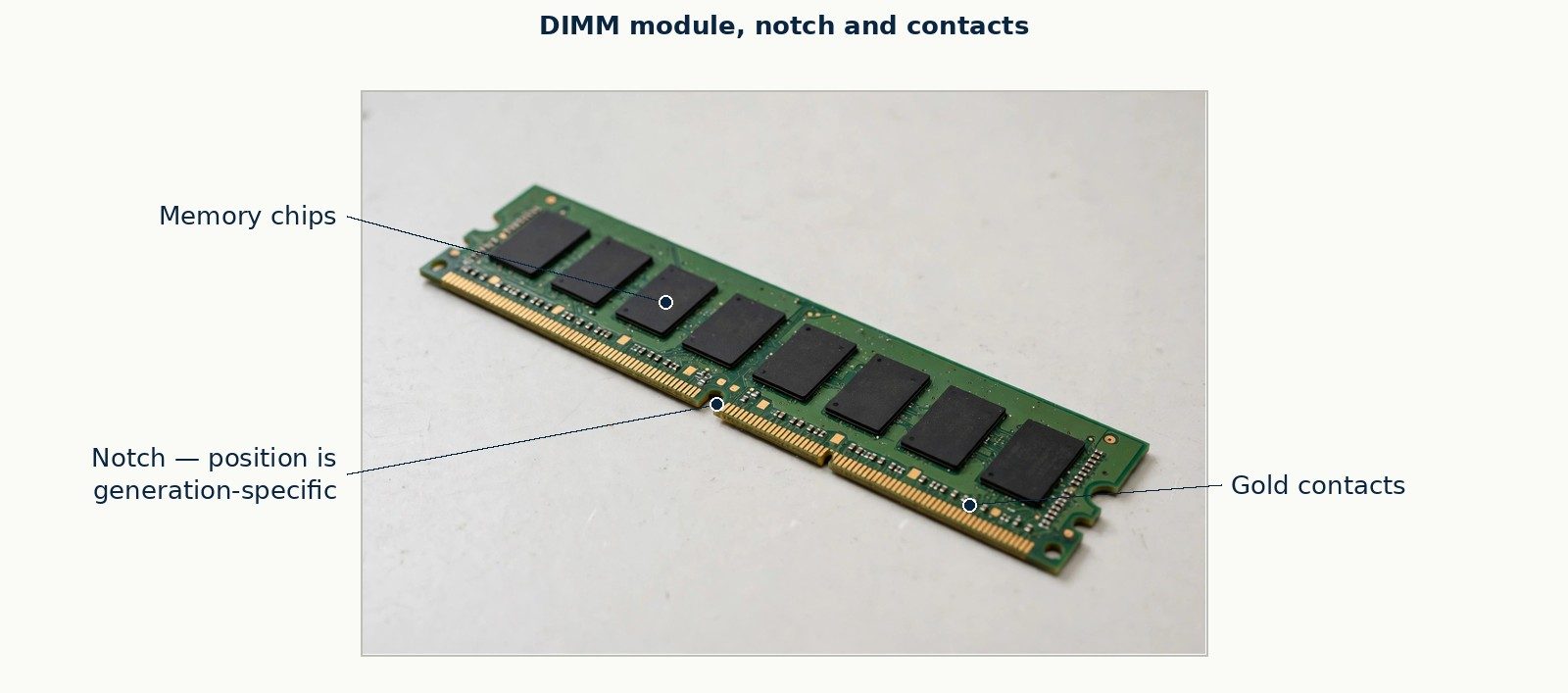
DIMM module, notch and contacts labeled
Figure P-14 — SO-DIMM module.
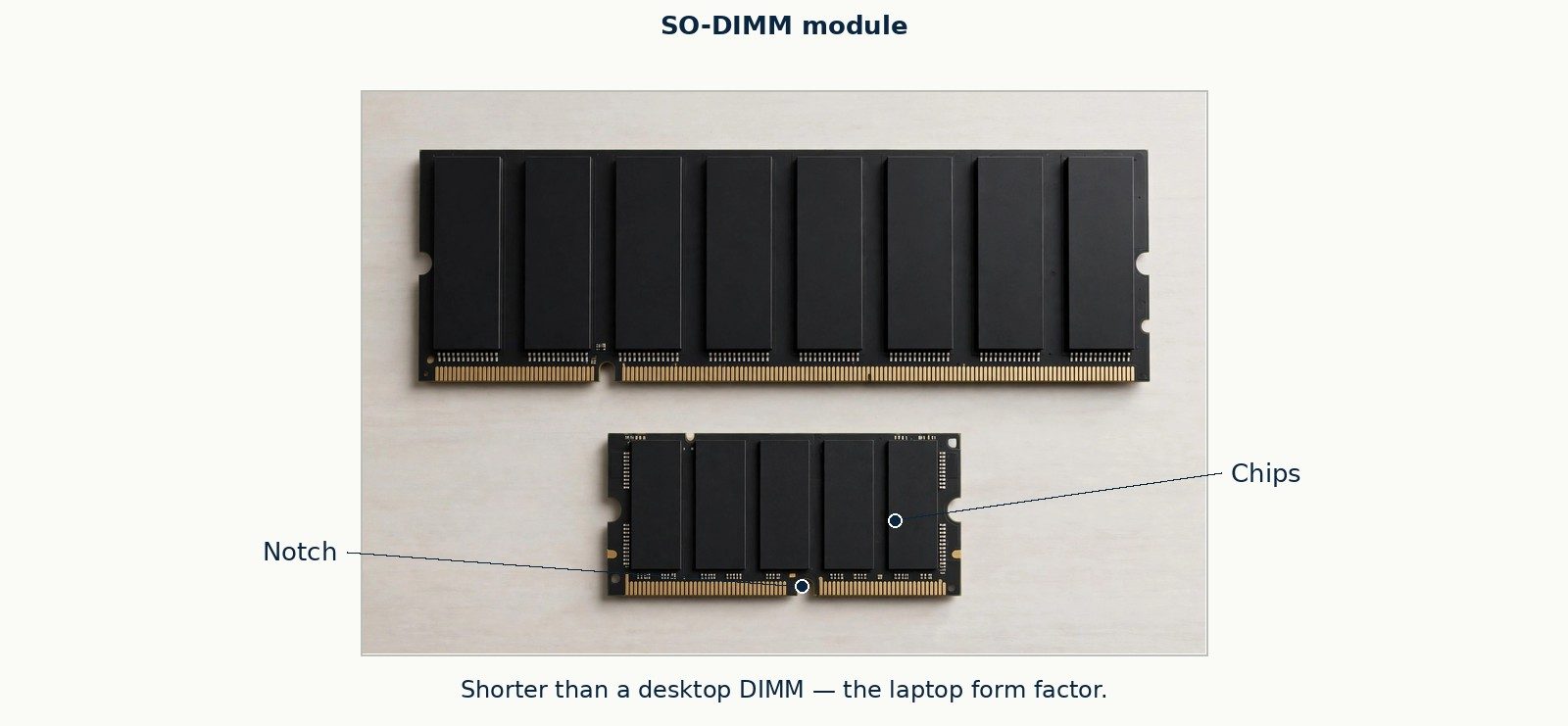
SO-DIMM module
Storage is non-volatile: it keeps data with the power off, for as long as you leave it there. The operating system, your applications, and your files all live on storage. Three storage technologies dominate, and Chapter 15 teaches them in depth; the foundation is knowing they exist and how they differ in kind.
Figure P-16 — 3.5″ hard disk drive, cutaway.
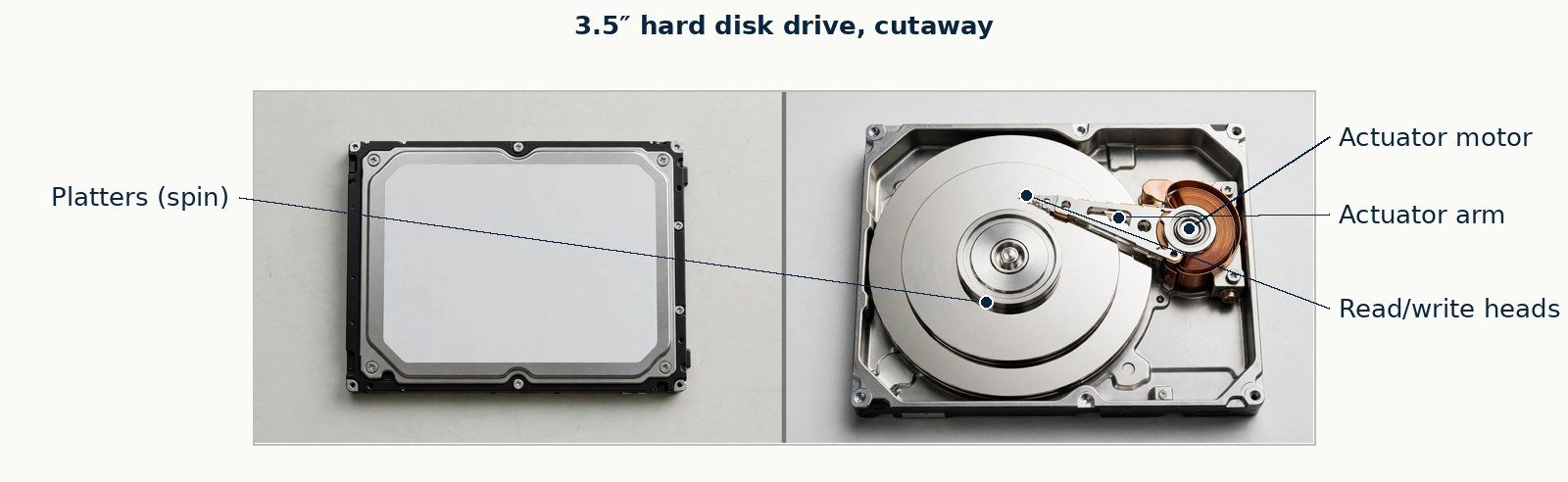
platters, actuator, heads
Figure P-17 — 2.5″ SATA SSD.
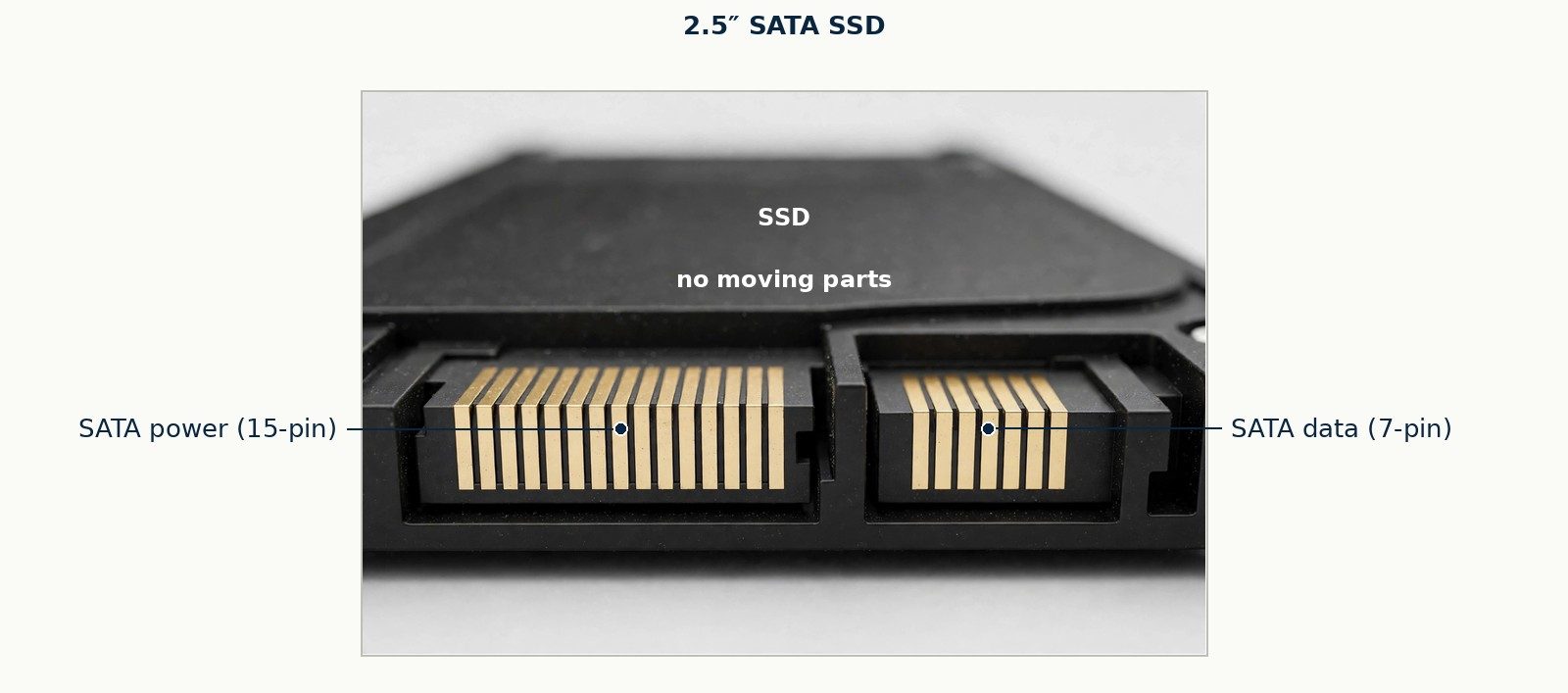
2.5″ SATA SSD
Figure P-18 — M.2 NVMe SSD and its slot.
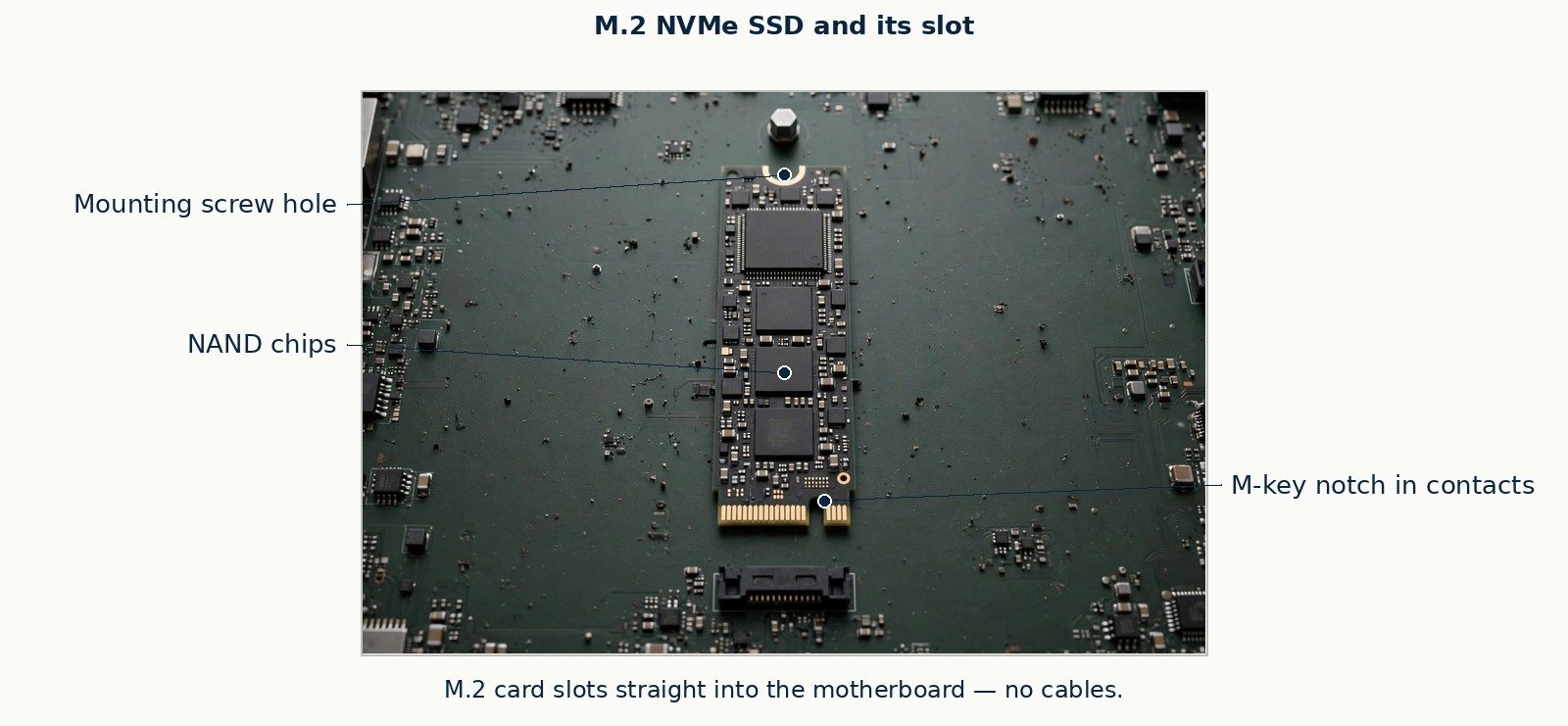
M.2 NVMe SSD and its slot
The desk-and-filing-cabinet picture now completes itself: storage is where things live; RAM is where things are worked on; the CPU does the work. A machine that "runs out of memory" has a full desk. A machine whose files are gone has a filing-cabinet problem. Beginners who keep those apart are already ahead of many ticket queues.
The power supply unit (PSU) converts the alternating current (AC) from the wall outlet into the direct current (DC) voltages components use, and delivers that power through a set of standard connectors: a wide 24-pin main connector to the motherboard, a separate CPU power connector, and cables for storage drives and power-hungry expansion cards. PSUs are rated in watts (W) — the total power they can deliver — and a supply must be sized to the machine it feeds, with headroom; Chapter 17 teaches that arithmetic properly (it is one of this book's designated calculation families). At foundation level, carry two facts and one warning. The facts: no part of the machine receives wall power directly — everything eats what the PSU serves — so a dead PSU makes a completely dead machine, and a failing PSU can produce some of the strangest intermittent faults in the trade. The warning: a PSU holds dangerous charge even after it is unplugged, and it is never opened. Technicians replace power supplies; they do not repair them. That sentence is a safety rule of the profession, and §1.6 returns to it.
Figure P-11 — power supply unit, switches and modular sockets.
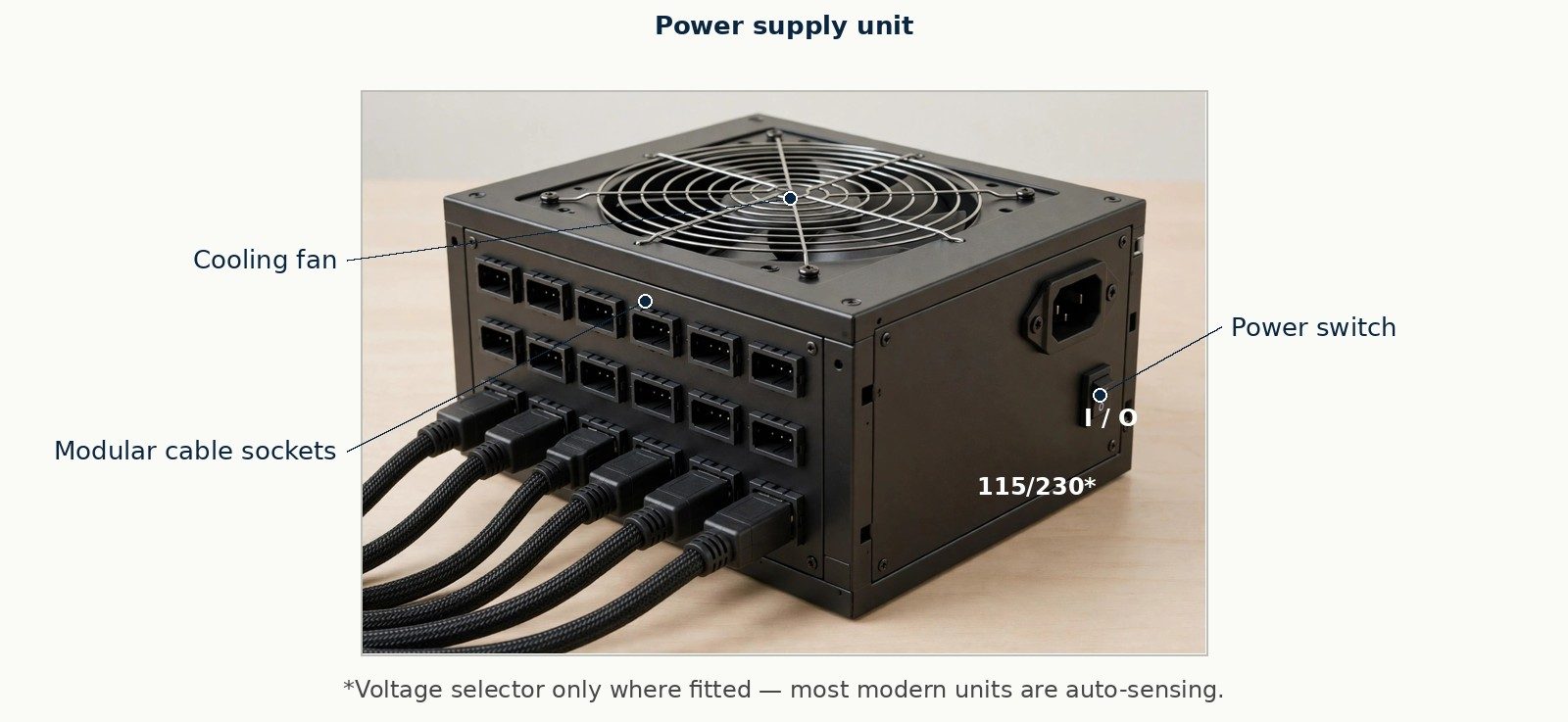
power supply unit, switches and modular sockets
Figure P-12 — PSU connector set: 24-pin ATX, 8-pin EPS, PCIe power, SATA power, Molex.
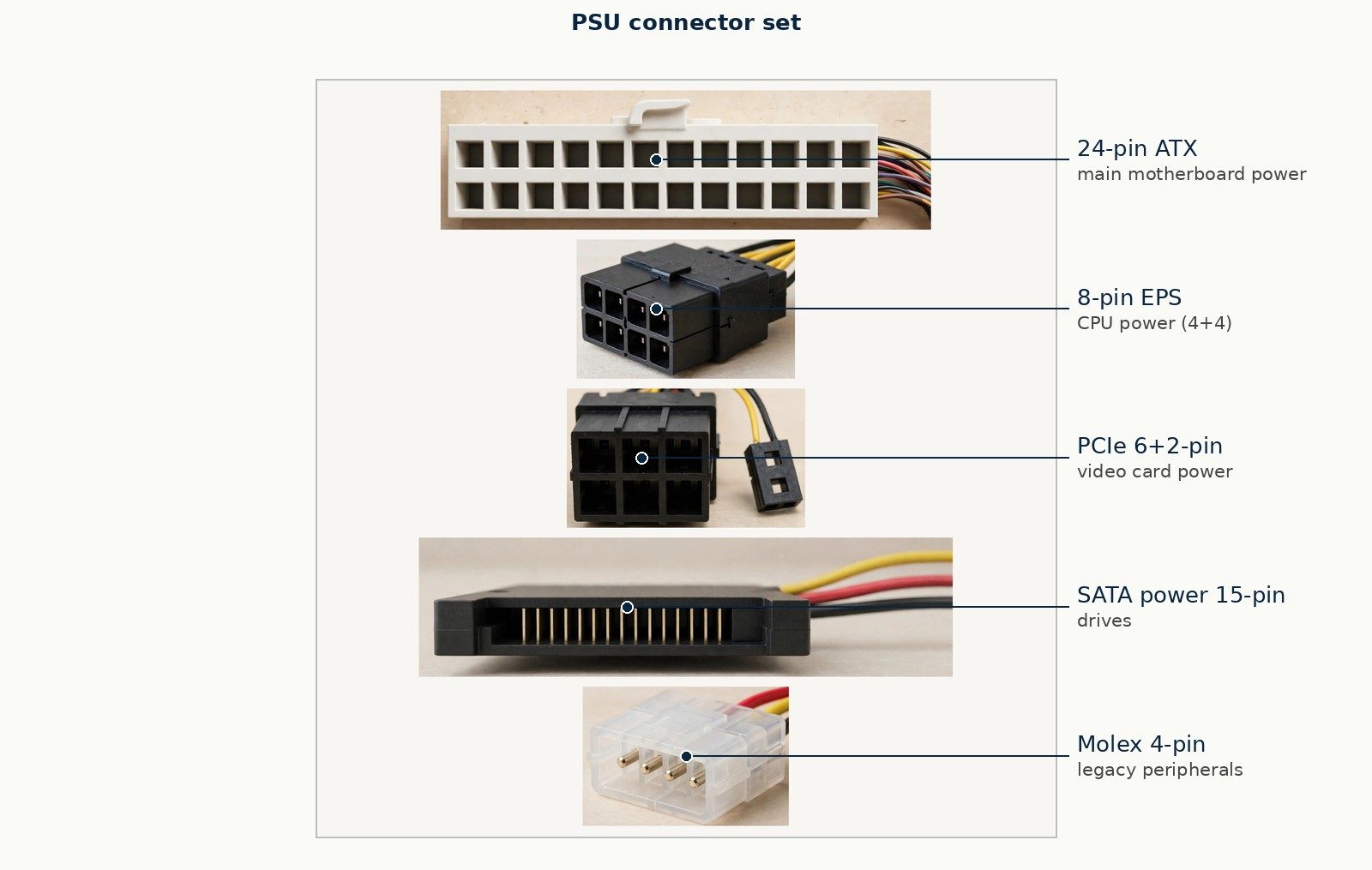
PSU connector set: 24-pin ATX, 8-pin EPS, PCIe power, SATA power, Molex
A motherboard's expansion slots accept add-on cards that give the machine abilities its board does not carry alone. The current slot standard is PCIe — Peripheral Component Interconnect Express — and slots and cards are sized by their lane count, written ×1, ×4, ×8, ×16: more lanes, more data per moment. The card beginners meet most is the graphics card (GPU) — graphics processing unit — a board carrying its own processor and memory dedicated to producing the display image, essential for gaming, video, and design work, and the single most power-hungry card in most machines. Other common cards add network ports, sound, video capture, or extra storage connections. A card must match a slot of its size or larger, must fit the case, and must be fed by the PSU if it carries a power connector — three checks Chapter 16 turns into routine.
Figure P-08 — PCIe slots with a seated expansion card.
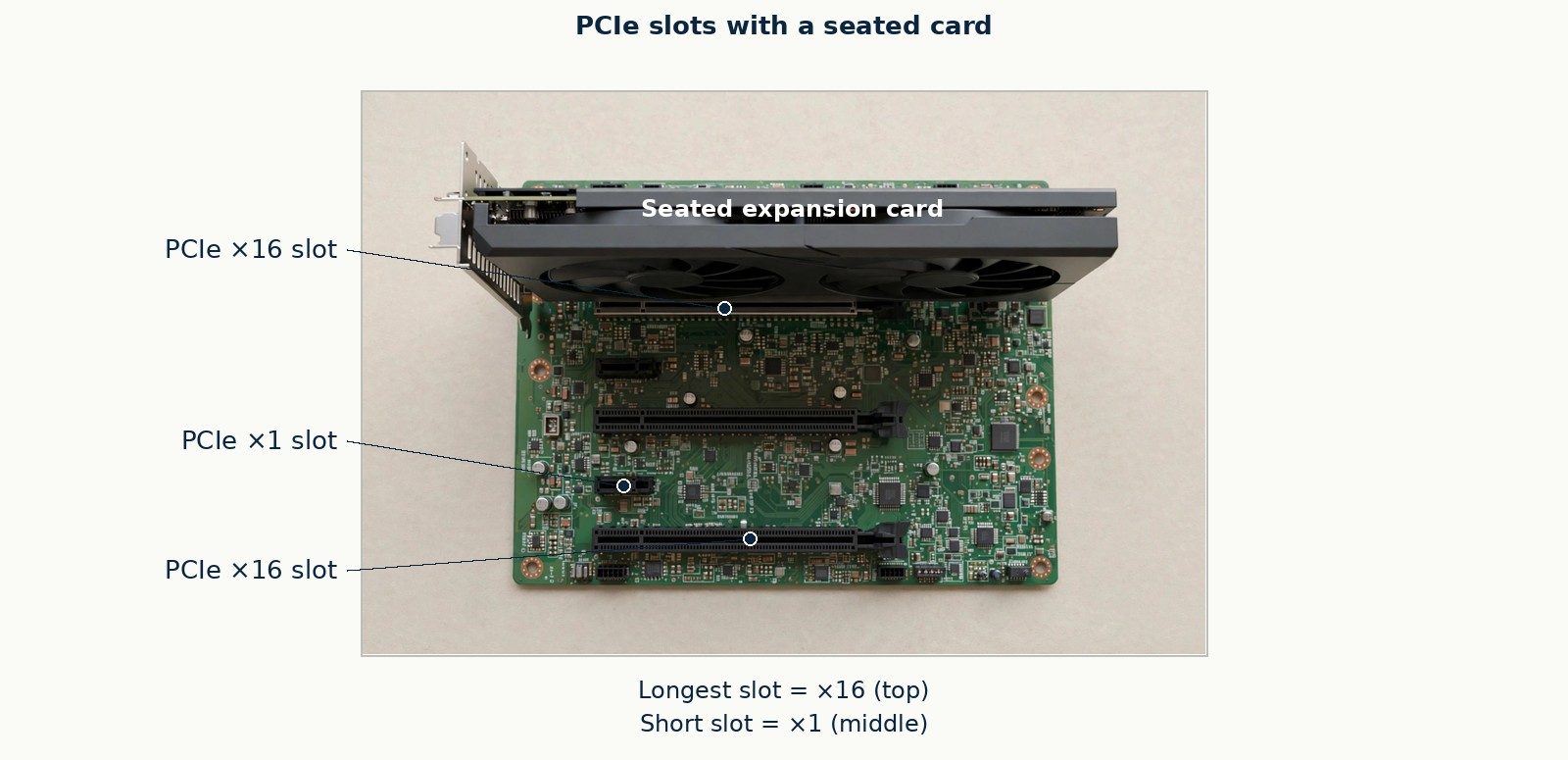
PCIe slots with a seated expansion card
Figure P-09 — add-on cards: video, sound/capture, NIC.
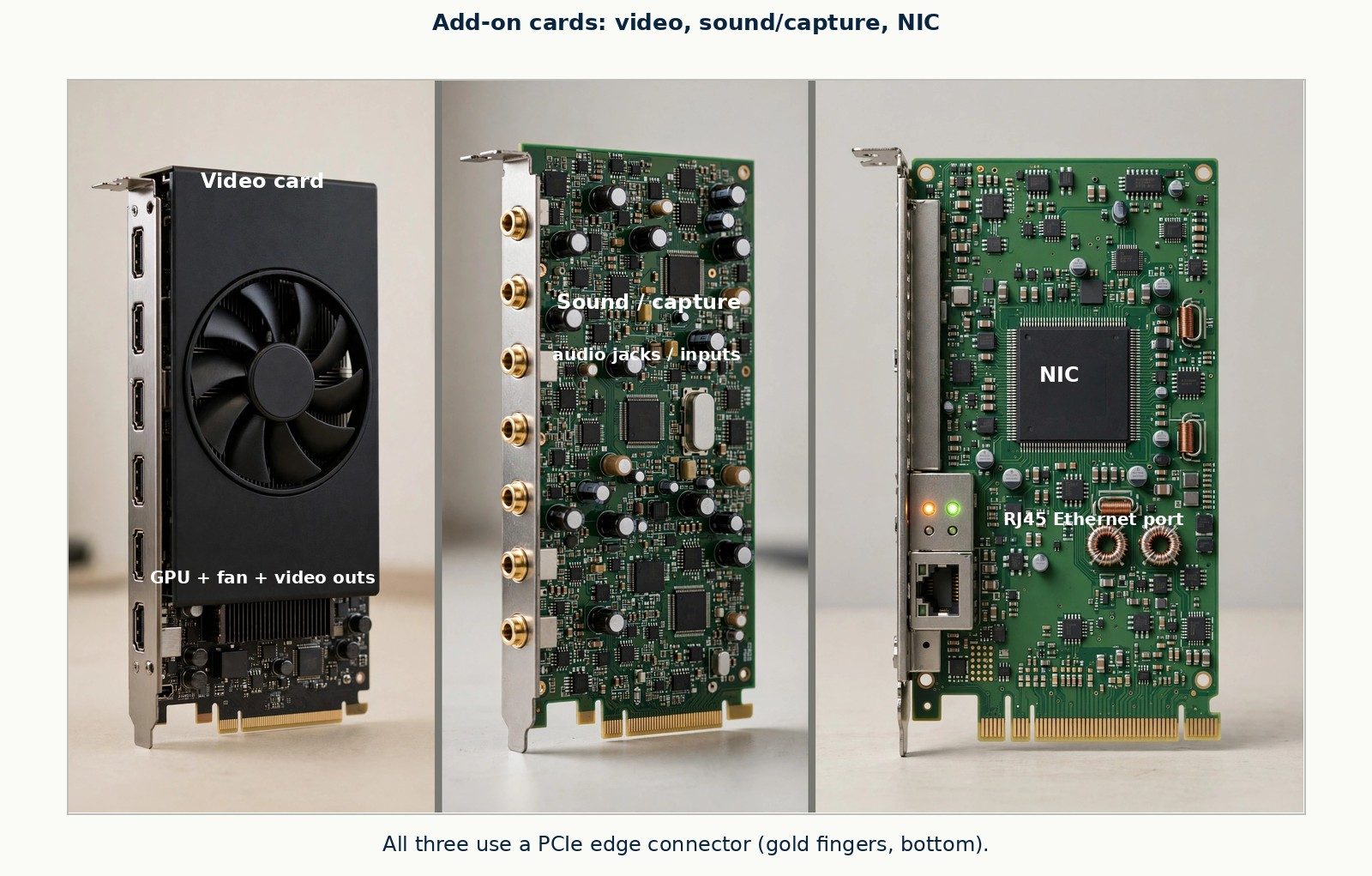
add-on cards: video, sound/capture, NIC
Before any operating system loads, the machine runs firmware — software stored on a chip on the motherboard. Its modern form is UEFI (Unified Extensible Firmware Interface), the successor to the older BIOS. Firmware performs the POST — power-on self-test — a quick check of processor, memory, and essential hardware each time the machine starts, then finds a storage device holding an operating system and hands control to it. When a machine beeps, flashes codes, or stops at a text screen before Windows, macOS, or Linux appears, you are looking at firmware's world, and the fault lies below the operating system — a distinction that will save you hours across Part VII. Firmware settings (boot order, hardware options, security features) are changed in a setup utility reached by a key press during those first seconds of startup; the exact key varies by maker, and the machine's first screen usually names it.
Go back over the tour a second time, slowly, the way you will read a real machine on a real bench — not as a list of parts but as a set of relationships, because on the job you are almost never asked "what is this part?" You are asked "why does this machine not work?", and the answer nearly always lives in a relationship between two parts. Start at the power supply and follow the energy. The supply takes alternating current (AC) from the wall and delivers direct current (DC) along its cables to the motherboard and the drives. Nothing else in the machine can begin until that delivery happens, which is why a machine that shows no sign of life at all — no fan, no light, no sound — sends your thinking to the wall outlet, the cable, and the supply before it sends you anywhere glamorous. Next follow the data. The processor (CPU) works on whatever is in random-access memory (RAM); RAM is filled from storage; storage connects to the motherboard; and the motherboard's pathways carry every one of those conversations. When a machine runs but is mysteriously slow, you are usually looking at a queue somewhere along that path: a processor waiting on a full memory, a memory waiting on a slow drive, or a drive itself failing in a way that makes every read take ten attempts. Finally follow the heat. Every part that does work makes heat, the cooling system moves that heat out of the case, and a machine that works for ten minutes and then stops is very often a machine whose heat has nowhere to go — a failed fan, a heatsink clogged with dust, a vent blocked by the wall it was pushed against. Energy, data, heat: three flows across the same set of parts. A beginner memorizes the parts; a technician traces the flows. Every troubleshooting chapter in this book is, underneath its details, one of those three traces performed carefully.
Because the exam — and the job — present symptoms rather than labels, fix the parts in your mind by their failure signatures while the tour is fresh. A failing power supply tends to take the whole machine with it: total silence, random shutdowns under load, or a machine that starts only sometimes, because every other part depends on its delivery. A failing processor is rarer and blunter: a machine that begins to start and stops, or that never reaches its startup checks at all, with the cooling system proven good. RAM failure characteristically lets the machine begin and then betrays it — startup beeps or error codes on some machines, freezes and restarts that move around and never repeat in the same place on others, because a bad memory location only matters when something is written to it. Storage failure announces itself in the machine's memory of itself: a computer that cannot find its operating system, that takes longer every week to open the same files, or that clicks rhythmically from inside the case — a sound no healthy drive makes, and one you should learn to recognize the first time a senior technician lets you hear a dying drive. A motherboard failure is the diagnosis of exclusion and of visible evidence: swollen or leaking capacitors (the small cylinders on the board, which should be flat-topped), scorch marks, or several unrelated subsystems failing together, because the board is the one part everything else shares. None of this is a diagnosis yet — it is a sense of direction, the first theory you will learn to test properly in Chapter 2. But notice the shape of it: each signature follows from what the part does. Learn the jobs and the signatures come free; memorize signatures without the jobs and the first unfamiliar symptom will defeat you.
Turn any machine around and you will find its ports — the sockets through which it connects to displays, networks, and the drawerful of devices called peripherals. Port recognition is a perishable beginner skill that becomes permanent fast: there are only so many shapes, each shape has a name, and each name implies what the connection can do. This section teaches the shapes; later chapters teach the standards behind them.
Figure P-03 — rear I/O port panel, every port labeled.
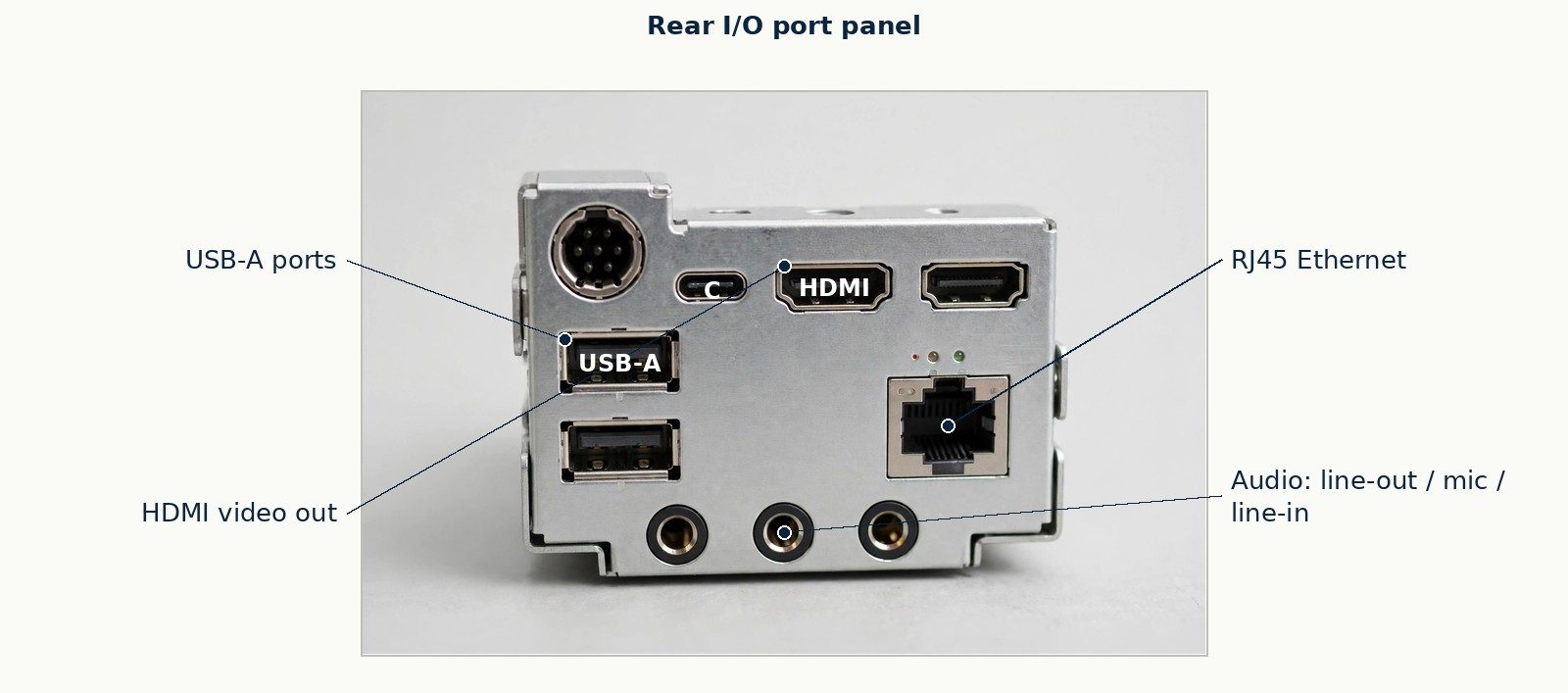
rear I/O port panel, every port labeled
USB — Universal Serial Bus — is the general-purpose connection of modern computing: keyboards, mice, printers, storage, phones, and hundreds of other devices plug into it, carrying both data and power. Learn it as two separate facts that beginners constantly merge into one error.
The first fact is the connector shape. The flat rectangular USB Type-A plug is the classic host-side shape found on computers for decades. Smaller device-side shapes — mini and micro variants — served phones and cameras. The current shape is USB Type-C (USB-C): a small, oval, reversible plug that inserts either way up, now found on laptops, phones, tablets, docks, and monitors. A separate Apple connector, Lightning, served iPhones and some Apple accessories for a generation before Apple moved its phones to USB-C; it remains in the objectives and in the field, and Chapter 4 treats it properly. The second fact is the generation — the speed and capability standard the port implements, which the shape does not tell you. A USB-C port may carry modest speeds or the fastest speeds the standard offers; it may also carry Thunderbolt, Intel's technology (developed with Apple) that runs over the USB-C connector and adds high-speed data, display output, and power through the one port — Thunderbolt ports are commonly marked with a lightning-bolt symbol. Shape is what fits; generation is what it can do. Keep those apart and you have understood USB better than most of the internet.
Figure P-27 — USB plug family: A, B, mini, micro.
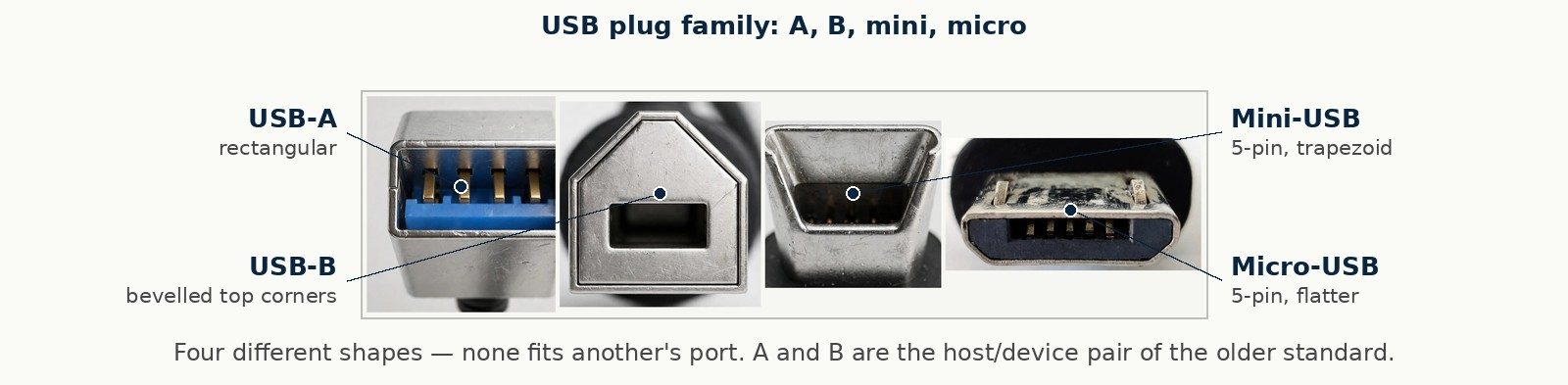
USB plug family: A, B, mini, micro
Figure P-28 — USB-C plug with Thunderbolt marking.
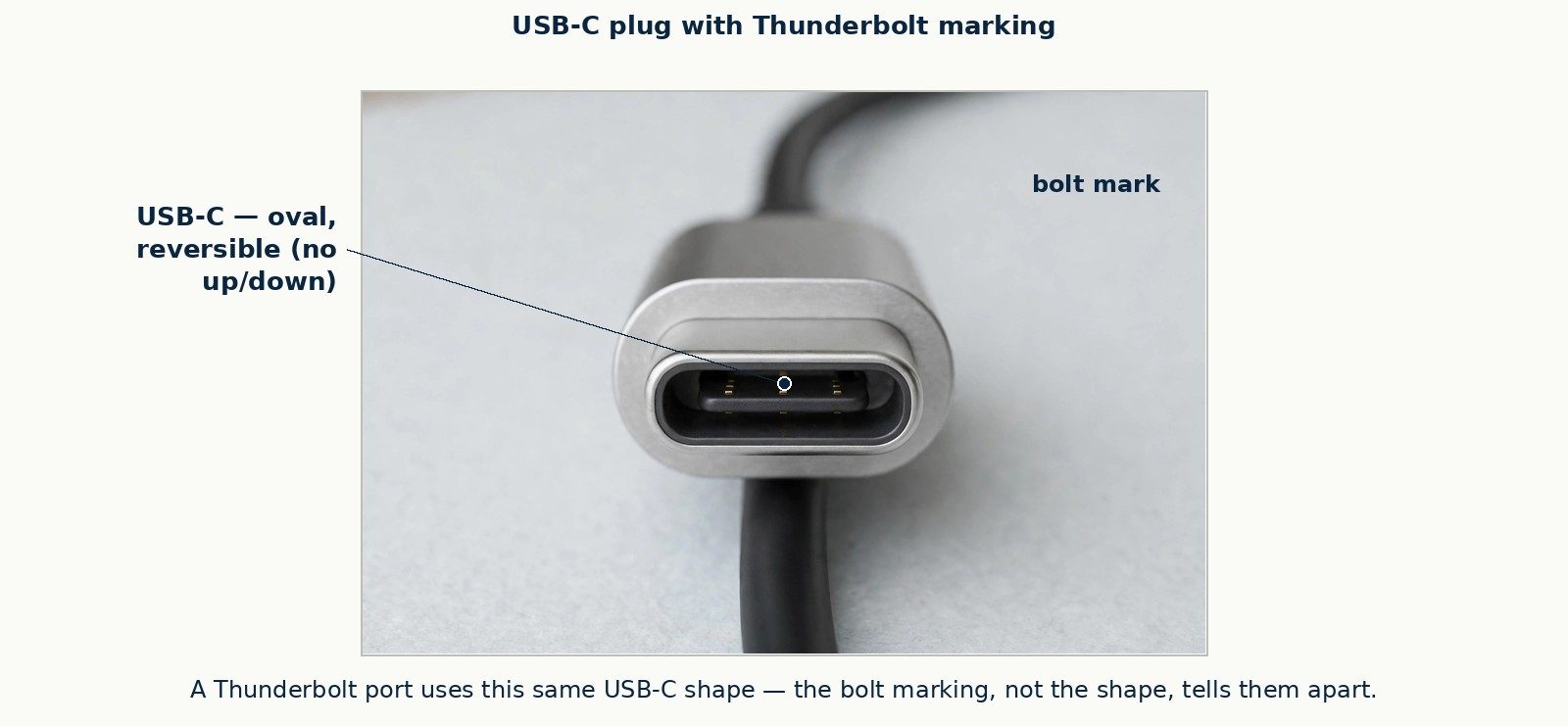
USB-C plug with Thunderbolt marking
Figure P-29 — Lightning connector.
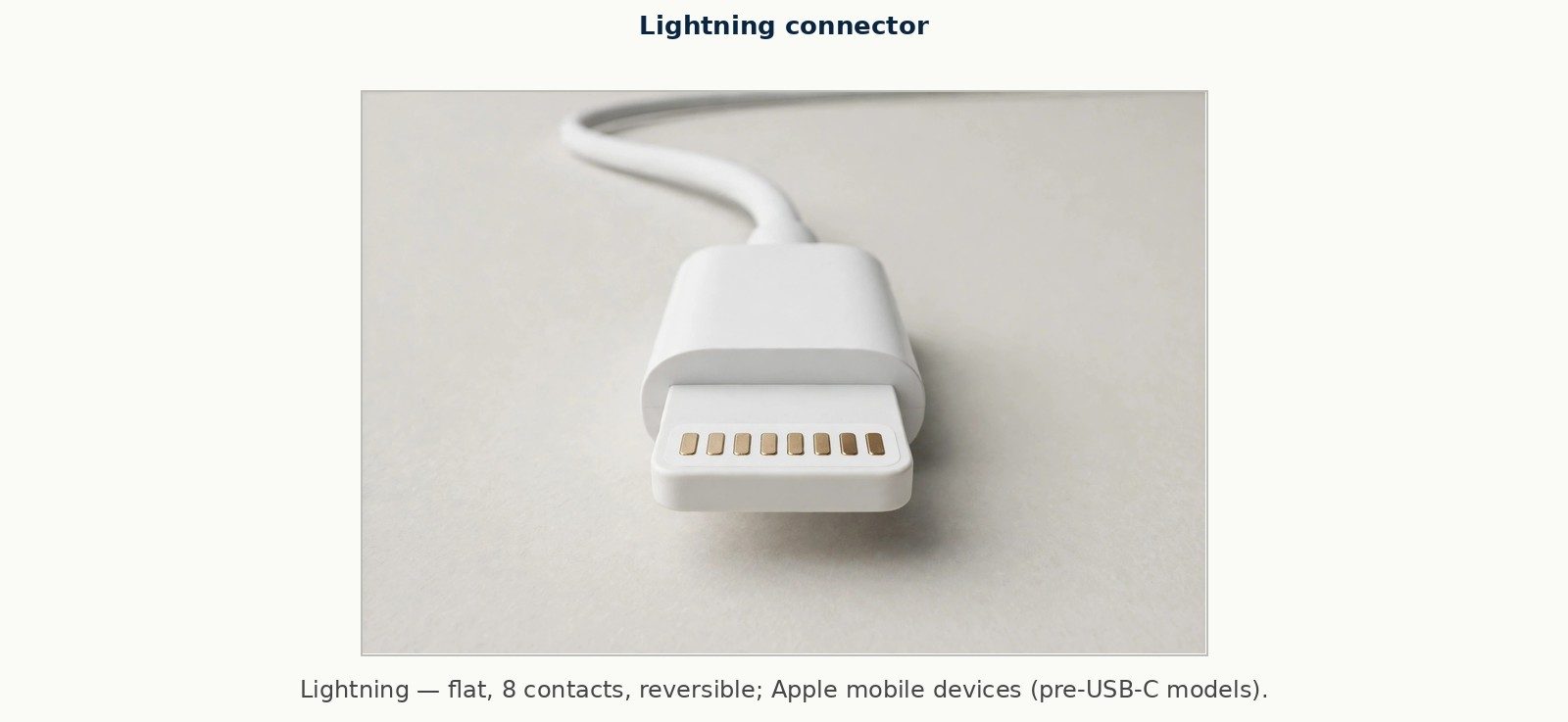
Lightning connector
Four display connectors span the machines you will service. HDMI (High-Definition Multimedia Interface) is the living-room and office standard, carrying video and audio in one cable, in full-size, mini, and micro forms. DisplayPort is the computer-display standard, common on monitors and docking stations, also carrying audio with video. USB-C can itself carry a display signal (a capability called DisplayPort alternate mode, where the USB-C port speaks the DisplayPort language) — this is how one-cable laptop docks drive monitors, and it is a property of the port, not of any special cable branding; a plain USB-C cable is either rated for the job or it is not, and Chapter 13 teaches how to tell. Older machines contribute DVI (video only, in several pin variants) and the blue-plugged analog VGA connector, both legacy now but both still in the field and the objectives. Adapters exist between most pairs of these, but an adapter changes the plug, not the signal's limits — a sentence Chapter 12 expands.
Figure P-30 — HDMI family: full, mini, micro.
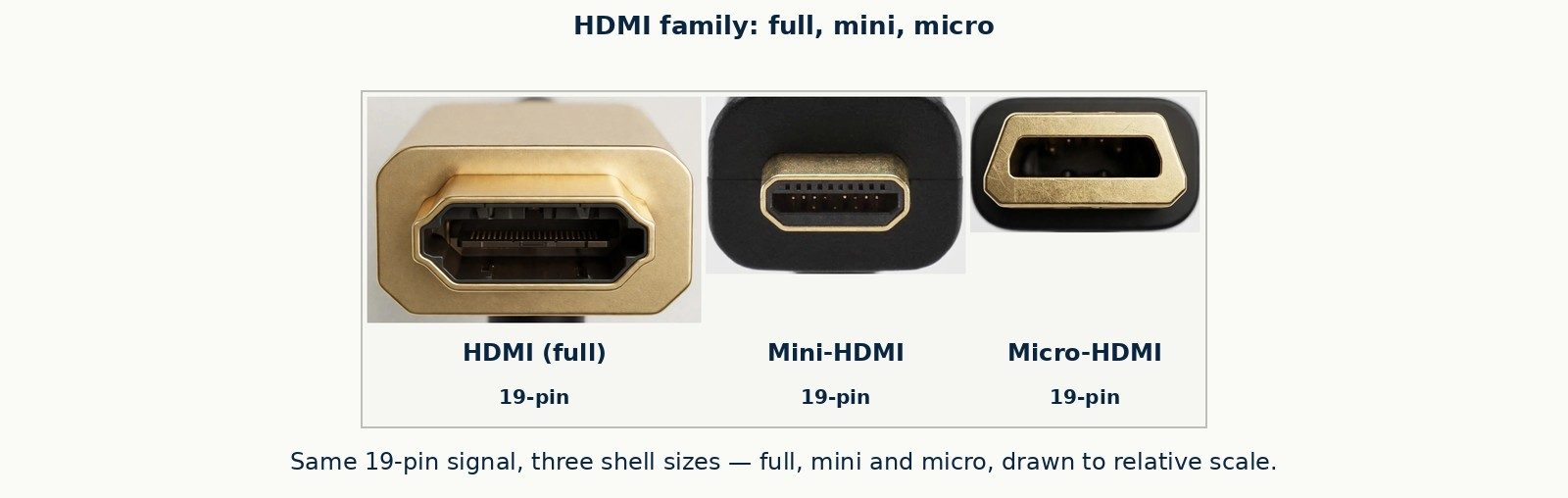
HDMI family: full, mini, micro
Figure P-31 — DisplayPort connector.
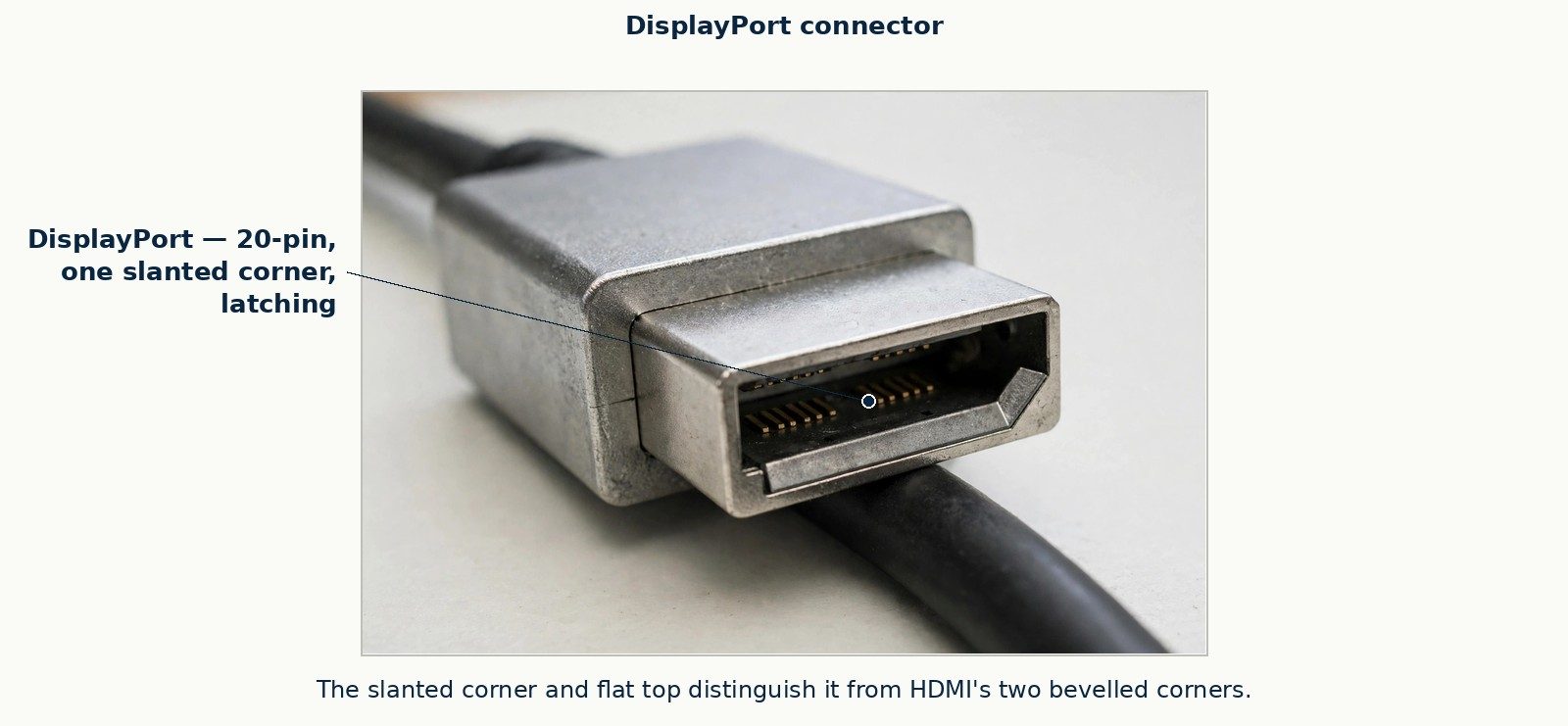
DisplayPort connector
Figure P-32 — DVI connector variants.
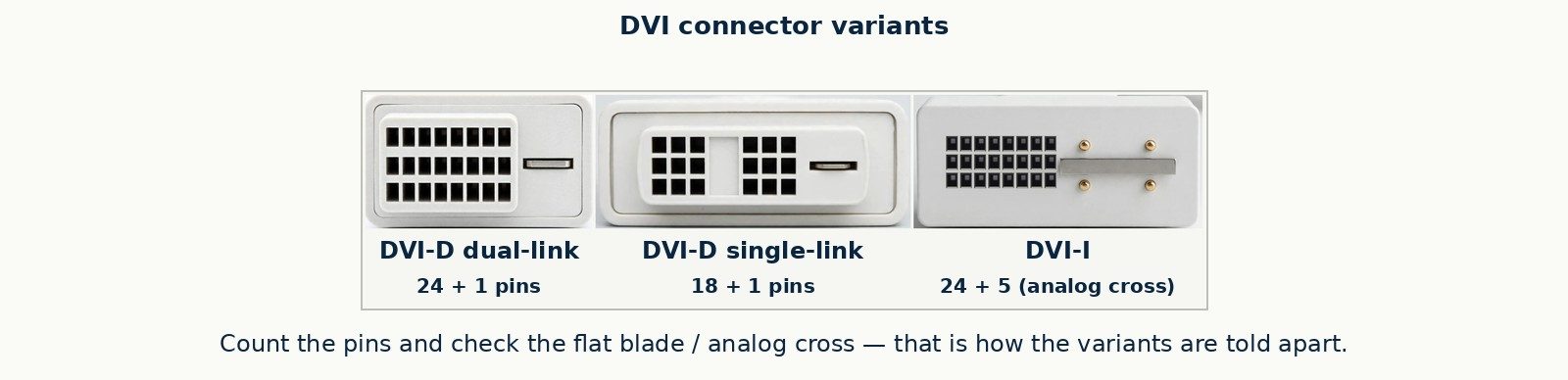
DVI connector variants
Figure P-33 — VGA connector.
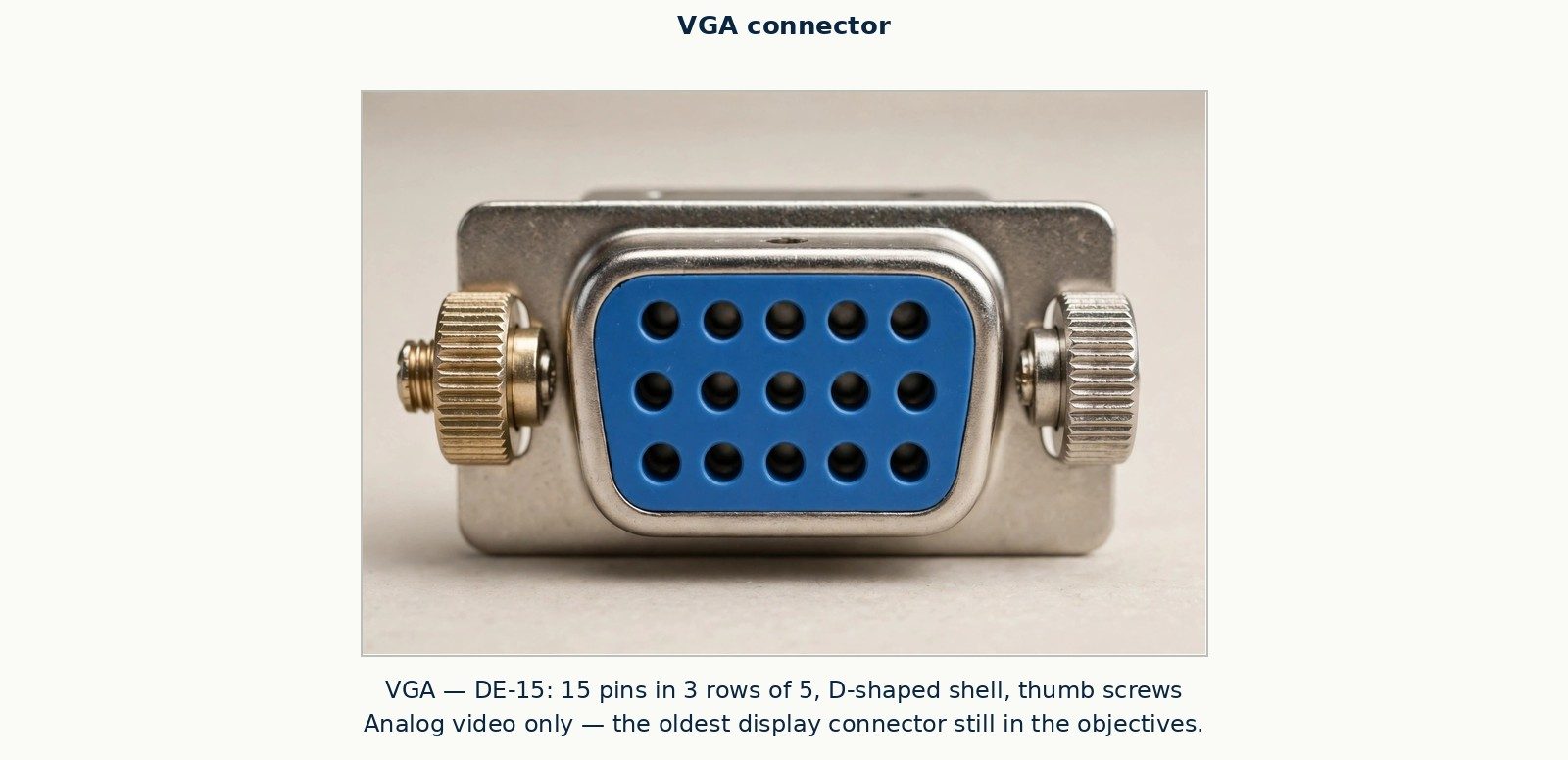
VGA connector
The wired network port is RJ45 — the wide jack, like an oversized telephone plug, that accepts an Ethernet cable and clicks home on a plastic tab; its smaller telephone cousin is RJ11. Two small lights beside the jack report link and activity, and a technician reads them the way a nurse reads a pulse. Chapter 5 onward lives in this port's world. Audio arrives as the round 3.5 mm jack (often color-coded on desktops: green for speakers out, pink for a microphone in) and increasingly not at all, as headsets move to USB and Bluetooth. Storage and specialty connections — SATA inside the case, the external eSATA of an earlier era — are met at their chapters.
Figure P-23 — RJ45 plug with T568B termination, wire order labeled.
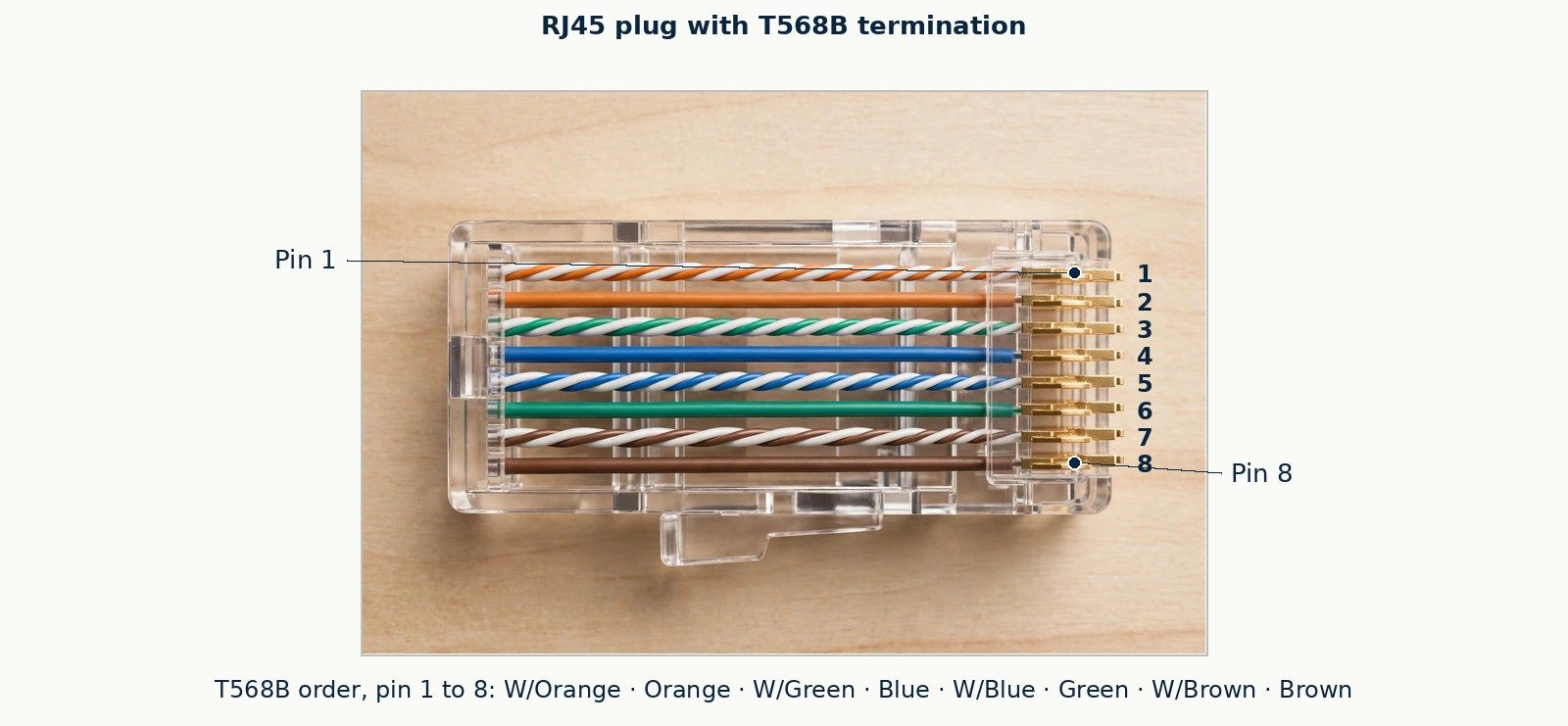
RJ45 plug with T568B termination, wire order labeled
Figure P-24 — RJ11 plug, shown against RJ45 scale.
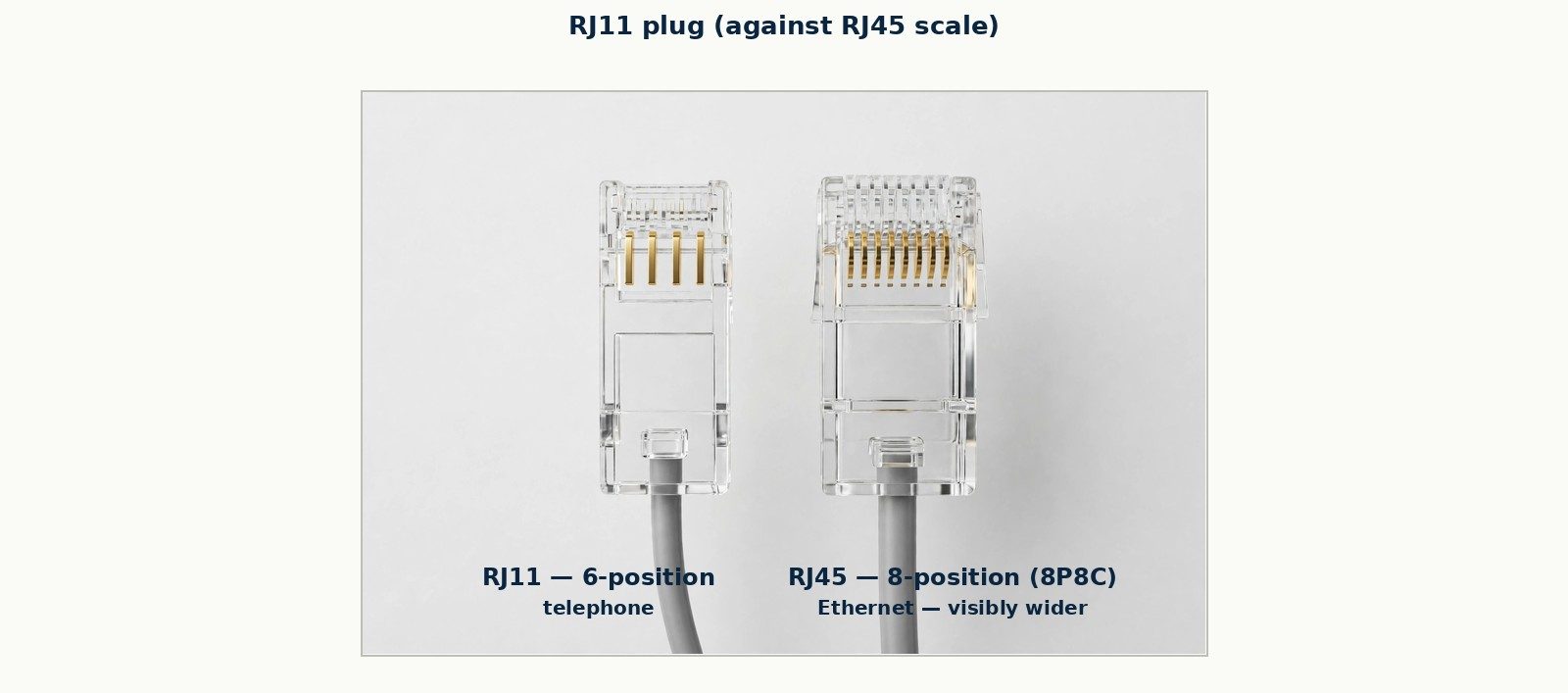
RJ11 plug, shown against RJ45 scale
Ports stop being a catalogue and become a judgment the first time one device offers you three ways to connect it, so practise the judgment here on the commonest case: a modern monitor that accepts both High-Definition Multimedia Interface (HDMI) and DisplayPort, attached to a computer that offers both. Either door will light the screen, and the beginner's question — "which is correct?" — has the technician's answer: the one that carries what this pairing actually needs, at the resolution and refresh rate the user will run, with the cable that is actually in the drawer. Work the decision in the order the field works it. First, what does the display demand? A basic office panel at ordinary resolution asks little of any link; a high-refresh or very high-resolution panel asks for bandwidth that an older cable or an older port revision may not deliver, and the symptom of guessing wrong is not damage — it is a display that quietly runs below its capability, a fault nobody reports because nobody can see the missing performance. Second, what else travels the cable? Some connections carry only the picture; some carry sound to the monitor's speakers as well; a laptop docked through Universal Serial Bus (USB) may be asking its one cable to carry picture, data, network, and power at once — four jobs, each of which the cable and the port must support together, so that a dock "half working" is usually one job failing among four, and your §1.5 habit of asking how far does it get applies per job. Third, what is already plugged in and working? A technician who unplugs a working arrangement to satisfy a preference for one door over another has made the machine worse in the name of tidiness; the field rule is that a working connection is evidence, and you change it for a reason you can state. Hold the same three questions up to the other port families as you meet them: a printer by USB or by network (the network door serves every machine in the room; the USB door serves one and ties it to a desk), an external drive by a slow port or a fast one (the door sets the ceiling on every transfer the drive will ever do, and Chapter 2's arithmetic will let you price that ceiling in minutes). Ports are never merely shapes. Each is an offer of capabilities, and reading the offer — picture, sound, data, power, reach, and speed — is the skill this section of the chapter is really teaching.
Everything attached to the machine to serve the input and output ends of the loop is a peripheral. The foundation list is short and worth knowing cold: keyboard and mouse (or a laptop's touchpad/trackpad) for input; display for output; printer for hard output; speakers and headsets for audio both ways; webcam and microphone for video and voice input; external storage for carrying data; scanners for turning paper into files. Each has a chapter later. What matters now is the habit of classifying: when a user says "my computer is broken," the technician's first quiet question is often which part of the loop? — because a dead display on a healthy machine, a failed keyboard on a healthy machine, and a dead machine itself are three different tickets wearing one description.
Tie the tour together by watching a machine start. You press the power button. The PSU wakes and serves power to the motherboard. Firmware runs the POST: processor present, RAM answered, video alive — a failure here produces beeps, codes, or a stop before anything familiar appears. Firmware consults its boot order, finds the operating system on storage, and loads its first pieces into RAM. The operating system starts, loads drivers — the small translator programs that let the OS speak to each specific piece of hardware — and presents a sign-in screen. From that moment, your work happens in RAM at processor speed, is saved to storage when you tell it to save, and reaches you through the display. Every later troubleshooting chapter is this paragraph read backwards from a symptom: it stopped at this step, so the fault lives at or before this step.
Section 1.5 narrated a healthy startup. Now run the same story three more times and stop it at a different point each time, because where a startup stops is the single most informative fact about a machine that "won't turn on." First interruption: nothing happens at all. You press the power button and there is no fan, no light, no sound — the story never starts. That silence confines the fault to the short list of things that precede all computation: power from the wall, the power cable, the supply itself, the power button and its thin wires to the motherboard's front-panel header, or the board's ability to accept power. It cannot yet be the drive, the operating system, or the display, because the story never reached them; a beginner who reinstalls Windows on a silent machine has skipped the first page of the story. Second interruption: the machine starts and stops before any picture. Fans spin, lights come on, and then the machine halts, restarts, or beeps and shows nothing. The startup checks — the power-on self-test (POST) performed by the firmware — are failing, and the suspects are the parts POST examines: the processor seated and cooled, the memory seated and recognized, the video path. Beep patterns and small diagnostic displays exist precisely to narrate this interruption, and later chapters teach you to read them; for now, hold the principle: a machine that stops here has working power and a working board, and is complaining about one of the first components it checks. Third interruption: the machine starts, shows its firmware screens, and then cannot find or load its operating system. Power, POST, and firmware have all done their work; the failure lives in storage or in what storage holds — a failed drive, a disconnected data cable, a corrupted system, or a boot order pointing at the wrong device. Three interruptions, three different territories of the machine, and not one tool opened yet: only the story, listened to carefully. This is why experienced technicians ask "how far does it get?" before they ask anything else — the answer is the first and cheapest test you will ever run.
This section serves Core 2's safety objectives directly and every other chapter indirectly, because a technician who damages parts while "fixing" them is worse than no technician. Three hazard families cover nearly everything at foundation level: static, electricity, and handling.
ESD — electrostatic discharge — is the sudden flow of static electricity between two objects at different electrical potentials. You know it as the winter doorknob spark. The numbers explain the danger: a person can accumulate thousands of volts walking across a carpet, a discharge you can feel needs roughly 3,000 volts, and a discharge far smaller than you can feel — a few hundred volts or less — can damage or weaken a modern component. The damage may not kill the part today; it may leave it weakened to fail mysteriously weeks later, which is why professionals treat ESD discipline as non-negotiable rather than as superstition.
The defense is equalizing potential and draining charge, and it is mechanical habit, not talent:
Figure P-78 — ESD wrist strap and anti-static mat work area.
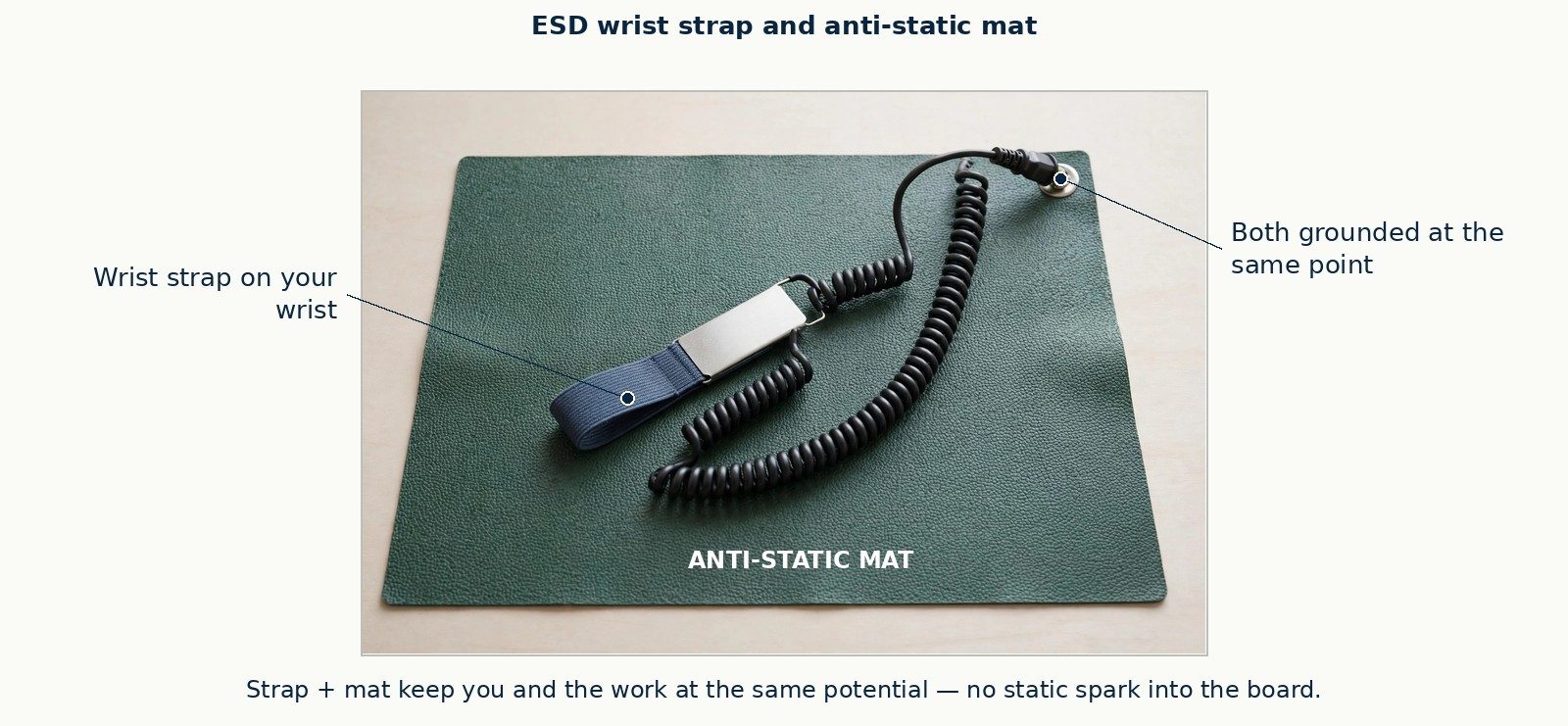
ESD wrist strap and anti-static mat work area
Parts are handled by edges; pins are never touched; modules are never forced — every connector in a modern machine is keyed, shaped so it fits only the right way, and resistance means stop and look, not push harder. Screws are kept in order (a magnetic parts tray is the trade's small mercy), cables are disconnected by their plugs and never by yanking their wires, and a removed laptop part goes on the mat, not on the desk's paperwork. When a part is out of the machine, it is either in a hand, on the mat, or in an anti-static bag. These habits sound fussy on day one and look like craftsmanship by month two — users notice them, and so do the exams, which test safe-handling scenarios directly under Core 2's operational procedures.
Theory becomes habit only by being walked through once in narrative, so here is §1.6 performed on the commonest real occasion: a donated desktop, history unknown, that your employer has accepted for refurbishment. Before the case opens, the machine is unplugged — not switched off, unplugged — and it stays unplugged while your hands are inside it; the one component you never open at all, the power supply's own sealed case, stays sealed, because it can hold a dangerous charge after unplugging and contains nothing you are meant to service. You work on a clear bench, not a carpet, with your ESD strap on and clipped to the case's bare metal, so that you and the machine sit at the same electrical potential and no spark — yours to it or its to you — has a difference to cross. Opening and looking is a diagnostic act, not a preliminary to one: before removing anything, you photograph the interior as found, because cable routing and card seating as-found are evidence (a disconnected drive cable explains a "dead computer" without any part being faulty, and the photograph is how you prove the machine arrived that way). You note the dust load, the state of the fans, and any capacitor that is domed rather than flat, all before a screwdriver turns. Removing parts follows the handling rules of the section above, now with names on them: memory modules come out by their retaining clips, never by prying, and go straight into an anti-static bag, held by their edges with the gold contacts untouched — skin oil and static are both contaminants, one slow and one instant. Drives are labeled with the machine's asset tag and their bay position before their cables come off, because two identical drives reinstalled in each other's place is a self-inflicted fault. Screws go into a compartmented tray in the order and grouping they were removed, because the machine will ask for every one of them back and will accept no substitutes of the wrong length near a circuit board. While the machine is open, nothing is forced: a connector that resists is a connector with a latch, a clip, or a keying you have not yet seen, and the correct tool is a closer look, never a harder pull. Closing reverses the discipline: cables reseated and checked against the photograph, the case closed only after a first power-on test with the cover off has shown fans turning and the firmware screen appearing — because reopening a case you closed too early is the tuition everyone pays once — and the bench left with every removed part bagged, labeled, and accounted for. None of this is ceremony. Each step answers a specific way that beginners damage machines and lose evidence, and the exam tests the steps as knowledge precisely because the field punishes their absence as loss.
A ticket reads: "Spare desktop in Room 4 won't turn on. Nothing happens at all." You arrive with this chapter only. Watch the foundations work. Nothing at all — no fan, no light, no sound — means the loop never starts, which points at the front of the startup story: power. Is the PSU's rear switch on? Is the outlet alive (test it with a lamp or a phone charger — a tripped power strip is the most common "dead computer" in any office)? Is the 24-pin connector seated on the board? Each question is cheap, safe (hands in a powered-down machine, strap on), and eliminates a whole branch of the fault tree. The machine in Room 4, as it happens, had a power strip switched off by a cleaner's vacuum cable — found in ninety seconds by a technician who pictured the loop and started at its beginning. That is the whole method in embryo; Chapter 2 names it and makes it formal.
Close the chapter by doing, on paper, the job of §1.7 once more with a machine you meet cold — the exercise your instructor would set if this book had a bench. A desktop arrives on the repair cart with a note: "Upgraded by a friend. Now it starts, beeps, and shows nothing." Before touching it, state what the note already tells you: the machine receives power and begins POST, so the territory is the second interruption of §1.5 — processor, memory, video — and the word "upgraded" tells you a change was made, and a change is always the first suspect in any failure that follows it. Open the case under §1.6's discipline: power disconnected, electrostatic discharge (ESD) precautions on, parts handled by their edges. Your eyes go first to what a friend upgrading would have touched. The memory modules: one sits at a visible angle, its retaining clips open, because a module that is not fully seated looks installed and is not — the commonest upgrade fault in the trade, and the reason the machine beeps: POST checks memory early and complains exactly this way. Reseat the module until both clips close on their own. The video card: seated, but its monitor cable is plugged into the motherboard's display port instead of the card's — the second classic, which alone would explain "shows nothing" even with every part healthy; a machine with an add-on video card normally turns its board video off, and the picture is waiting at the other socket. Move the cable. Now verify before you celebrate, in the order the story runs: power on, fans, POST completes without beeps, the firmware screen appears on the monitor, and the operating system loads to its sign-in. Each stage passed is a clause of the original complaint answered; the beep is gone because its cause is gone, and the picture is present because its path is complete. Write the ticket in the same order: symptom as reported, the two faults found, the actions taken, the verification performed. Nothing in this exercise required a part you have not met, a tool beyond a screwdriver, or knowledge past this chapter — it required only the tour, the startup story, and the discipline to look at what changed first. That is most of the job, and it is why this book teaches parts and relationships together from the first page.
This chapter is orientation, and it is honest about it: it serves the component knowledge Core 1 objective 3.5 (install and configure motherboards, CPUs, and add-on cards) will examine in depth in Chapter 16, and the safety practice Core 2 objective 4.4 (use common safety procedures) examines in Chapter 40. The exams will not ask "what is a computer?" — they will hand you a scenario about a machine that will not POST, a module that will not seat, or a technician about to open a case, and expect every name and rule in this chapter to already be reflex. Foundations chapters are where that reflex is built.
15 items. Answer key with full rationales follows this quiz.
1. A user's desktop produces no fan noise, no lights, and no display when the power button is pressed. Applying the input–processing–storage–output loop, where should a technician look FIRST? A. The storage device, because the operating system cannot load B. The power path — outlet, strip, PSU switch, and board power connections C. The display, because output failure looks like a dead machine D. The RAM, because POST cannot run without memory
2. Which statement about RAM is correct? A. RAM keeps its contents when the machine is powered off B. RAM is slower than an SSD but larger C. RAM is volatile working memory, emptied when power is removed D. RAM and storage are the same component in laptops
3. A technician is handed a DDR4 desktop module and asked to install it in a board whose slots are DDR5. What happens, and why? A. It installs and runs at DDR4 speed B. It installs but the firmware refuses to boot C. It damages the slot if forced at an angle D. It will not seat: generations are keyed by notch position and are not interchangeable
4. Which component converts wall AC into the DC voltages a computer's parts use? A. The power supply unit B. The chipset C. The voltage regulator on the GPU D. The CMOS battery
5. A technician must open a desktop to replace a drive. Which sequence follows safe-handling practice? A. Open the case, then unplug the machine if sparks are seen B. Unplug the machine, press the power button to drain residual charge, put on a connected ESD strap, then open the case C. Put on an ESD strap while the machine runs, then unplug it D. Unplug the machine and begin; ESD protection matters only for RAM
6. Why can ESD damage a component even when the technician felt no spark? A. Felt sparks are harmless; only visible arcs damage parts B. Static charge only builds up on metal tools, not people C. Damaging discharges can be far smaller than the roughly 3,000 volts a person can feel D. ESD damage requires the machine to be powered on
7. A laptop has a single USB-C port. Which statement is TRUE of that port, by itself? A. Its shape guarantees the fastest USB generation B. Its shape guarantees Thunderbolt support C. It can only charge the laptop, never carry data D. Its shape tells what fits; the port's generation and features must be checked separately
8. During startup, a machine beeps repeatedly and stops at a black screen before any operating system logo appears. In which layer does the fault most likely live? A. Firmware/hardware, during POST — before the operating system loads B. The operating system's user profile C. An application that starts after sign-in D. The user's network account
9. Which pairing of connector and purpose is correct? A. RJ11 — wired Ethernet to a switch B. RJ45 — wired Ethernet; RJ11 — telephone C. VGA — carries video and audio together D. HDMI — carries video only, never audio
10. A power supply is suspected faulty. What is the correct professional action? A. Open it and inspect the capacitors for bulging B. Test its internal fuses with the cover removed C. Replace it; power supplies are never opened because they store dangerous charge D. Run it outside the case with the cover off for diagnosis
11. A small storage module measures 2 GB. How many megabytes is that, using the binary convention (1 GB = 1,024 MB)? A. 2,000 MB B. 2,048 MB C. 1,024 MB D. 4,096 MB
12. Which component's failure MOST directly produces the symptom "the machine slows down badly under load and sometimes shuts off, but works when idle"? A. The optical drive B. The front-panel header C. The CMOS battery D. The CPU cooling assembly — a failing fan or dried thermal interface lets heat force throttling and shutdown
13. A motherboard is described as Mini-ITX. What does that tell the technician? A. Its form factor — its size and mounting pattern — which must match the case B. Its processor brand C. Its memory generation D. Its power supply wattage
14. What is the role of a driver? A. It converts AC power to DC power for one device B. It stores the operating system when the machine is off C. It lets the operating system communicate with a specific piece of hardware D. It cools a component by driving its fan
15. A removed motherboard is being carried across a carpeted room to a workbench. Which handling is correct? A. Carry it by its largest capacitor, in the open air B. Carry it in its anti-static bag, holding the bag's exterior, after equalizing potential C. Carry it by the gold contacts to avoid touching components D. Set it on the carpet briefly; carpet insulates it
© 2026 Feras Alzubi
All rights reserved.
Mastering Careers & Skills
This book is an independent study publication. It is not affiliated with, endorsed by, or sponsored by CompTIA. CompTIA and A+ are trademarks of CompTIA, Inc. The exam objectives cited in this book are the published objectives of the CompTIA A+ Core 1 (220-1201) and Core 2 (220-1202) exams, Version 2.0 (© 2024, CompTIA).
Built against the CompTIA A+ Core 1 (220-1201) and Core 2 (220-1202) Certification Exam Objectives, Version 2.0 (© 2024, CompTIA) — the V15 series, live since March 2025. Confirm on CompTIA's website that these are still the objectives of record before you book.
This book is an independent study publication, as the disclosure above states. It was written from CompTIA's published exam objectives and CompTIA's published program pages, which are named wherever they are used and listed in full in the References in the back matter. CompTIA did not write, review, or approve any page of it.
Four consequences of that independence are stated here at the front, not buried at the back.
First, this book teaches one exam series, and names it everywhere. The series is CompTIA A+ V15: Core 1 (220-1201) and Core 2 (220-1202), built against the Certification Exam Objectives, Version 2.0 (© 2024, CompTIA), live since March 2025. The predecessor series, V14, is fully retired and cannot be booked in any language. It appears in this book in exactly one place — the dated note on versions in this front matter — because a reader who studied for it deserves an honest account of where that study now stands. No V14 objective, code, or date is taught as current anywhere else in this book. Before you book any sitting, confirm on CompTIA's website that the V15 objectives named on the title page are still the objectives of record; exam series are CompTIA's to set and CompTIA's to change, and the basis line is printed precisely so that you can check this book's age against it.
Second, this book does not promise that you will pass either exam, earn the credential, get any job, or earn any income. It teaches both exams' complete content from zero — what a computer is and what its parts are called before it asks you to troubleshoot one — and it drills you with original practice: a diagnostic spanning both exams, a quiz at the end of every chapter, four full practice tests at the real exams' published shape, per-domain sets, mixed both-exam sets, and a print simulation layer for performance-based work. That is what a study book can honestly do. You will find no pass rate for these exams anywhere in this book, because CompTIA publishes none in anything this book's sources record. You will find no salary, hiring, or job-outcome figure either, for the same reason: this book prints what its sources establish, and it labels everything else as its own guidance.
Third, every practice item in this book is original. No actual exam item appears here, and nothing is derived from dumps, "real exam" collections, or any unauthorized material. CompTIA's own Authorized Materials Use Policy, printed in the objectives documents, states that the use of unauthorized materials can cost a candidate the credential. This book is a study text, not a leak, and its provenance is the opposite of that material: the objectives' published facts, taught in this book's own words, with this book's own figures and its own items.
Fourth, the facts this book cannot print are as deliberate as the facts it can. No exam price is printed anywhere in this book, because a price must be read from CompTIA's store, for your region, on the day you buy — confirm the current price there before you book. The specific continuing education unit count and fee for renewing this credential are likewise taught as a structure in these pages and taken by you from CompTIA's per-certification renewal pages, where the current figures live. A book that guesses at figures like these teaches you to trust guesses. This one teaches you where the figures live.
A note on labels, because labels carry the facts in this subject. Every exam fact in this book carries its source in words where it appears: the objectives documents, CompTIA's certification pages, the retake policy, the continuing education program page. Guidance this book itself invented — study plans, diagnostic timing, simulation scoring rubrics, and readiness lines — is labeled this book's guidance at every appearance. No blanket note substitutes for the label at the point of use.
The author's name. The copyright holder's name appears on this page, on the cover, and in the store metadata, and nowhere else inside this book. The book stands on its sources, which are named wherever they are used and listed in full in the References.
Copyright © 2026 Feras Alzubi. All rights reserved. No part of this book may be reproduced, distributed, or transmitted in any form or by any means without the prior written permission of the copyright holder, except as permitted by law.
Everything on this page traces to CompTIA's own publications, each named in words: the CompTIA A+ Core 1 (220-1201) Certification Exam Objectives, Version 2.0 and the CompTIA A+ Core 2 (220-1202) Certification Exam Objectives, Version 2.0 (© 2024, CompTIA); CompTIA's A+ V15 certification pages; CompTIA's launch release for the updated A+ (March 2025); CompTIA's Certification Retake Policy; CompTIA's published description of performance-based questions; and CompTIA's Continuing Education program page. Where a figure could not be verified from such a source, this page prints no figure at all — and says so, because the silence is itself information.
CompTIA A+ is a two-exam credential: a candidate must pass both Core 1 (220-1201) and Core 2 (220-1202) to earn the one certification. The version sat is not part of the credential. The pair verifies, in the objectives documents' own summary, installing, configuring, and maintaining computer equipment, mobile devices, and software; servicing components to customer requirements; networking basics and basic cybersecurity; diagnosing, resolving, and documenting hardware and software issues; troubleshooting and customer support with professional communication; and the basics of scripting, the cloud, virtualization, and multi-OS deployment. Both exams are accredited credentials under ISO 17024 (ANAB/ISO/IEC 17024, as CompTIA's launch release and the objectives documents state it). (CompTIA A+ Core 1 and Core 2 Certification Exam Objectives, Version 2.0; CompTIA's A+ V15 certification pages.)
| Core 1 (220-1201) | Core 2 (220-1202) | |
|---|---|---|
| Leaning | Hardware: devices, networks, the machine itself | Software: operating systems, security, professional practice |
| Questions | Maximum of 90 | Maximum of 90 |
| Time | 90 minutes | 90 minutes |
| Question types | Multiple-choice and performance-based | Multiple-choice and performance-based |
| Passing score | 675 (scale of 100–900) | 700 (scale of 100–900) |
| Recommended experience | 12 months hands-on in an IT support specialist job role — a recommendation printed in the objectives document, not a prerequisite | Same recommendation, printed the same way |
(Test details: CompTIA A+ Core 1 and Core 2 Certification Exam Objectives, Version 2.0.)
Two facts on this table are named teaching points in this book, because candidates reliably get them wrong. The two exams' passing scores differ — 675 for Core 1 and 700 for Core 2 — so any source that prints one number for "A+" is wrong for one exam or the other. And both numbers are scaled scores on a 100–900 scale, not percentages. A scaled score is produced by CompTIA's scoring process from your whole performance; 700 is not "78 percent" of anything you can compute from raw answers, and this book never converts a scaled score into a percentage or into a number of questions needed to pass. Performance-based questions carry their own confidential weighting, which is a second reason no such conversion exists.
Core 1 (220-1201) — 27 objectives
| Domain | Weight |
|---|---|
| 1.0 Mobile Devices | 13% |
| 2.0 Networking | 23% |
| 3.0 Hardware | 25% |
| 4.0 Virtualization and Cloud Computing | 11% |
| 5.0 Hardware and Network Troubleshooting | 28% |
Core 2 (220-1202) — 36 objectives
| Domain | Weight |
|---|---|
| 1.0 Operating Systems | 28% |
| 2.0 Security | 28% |
| 3.0 Software Troubleshooting | 23% |
| 4.0 Operational Procedures | 21% |
Total: 63 objectives across 9 domains and 2 exams. Every one of the 63 is taught in this book and mapped in the Outline Crosswalk appendix in the back matter. (Domains, weights, and objective counts: CompTIA A+ Core 1 and Core 2 Certification Exam Objectives, Version 2.0.)
Both exams mix multiple-choice questions with performance-based questions (PBQs): tasks performed in a simulated environment. CompTIA publishes two models — simulations (a limited-functionality environment, such as a firewall, a network diagram, or an operating system) and virtual environments (full virtual machines or systems). Some PBQs offer partial credit and others do not; point values vary, and the scoring of each question is confidential. CompTIA publishes no PBQ count for these exams, and this book prints none — its simulation layer, in the back matter's companion practice sections, rehearses the kinds of work the published models demand without claiming a count, a proportion, or any scoring knowledge of the real exams. (CompTIA, "What Is a Performance-Based Question?")
This note is dated October 30, 2026. It is the only place in this book where the V14 series is discussed. Everything else in this book teaches the V15 series — Core 1 (220-1201) and Core 2 (220-1202) — and nothing else in this book should be read as preparation for any other exam code.
What V14 was. The previous A+ series, V14, consisted of Core 1 (220-1101) and Core 2 (220-1102). For several years it was the sittable A+, and a large stock of books, courses, and videos was built for it. If you own A+ study material that does not name the 220-1201 and 220-1202 codes on its cover, you are very likely holding V14 material.
When it retired. CompTIA launched the current V15 series in March 2025. The English-language V14 exams retired on September 25, 2025, and the V14 exams in all other languages retired in December 2025. No V14 exam can be booked today, in any language. A V14 voucher, a V14 booking, or a plan to "finish V14 first" has no sitting left to attach to.
Versions cannot be mixed. The two exams that earn the credential must come from the same series. A candidate who passed one V14 exam cannot complete the credential with a V15 exam: that earlier pass does not combine with a 220-1201 or 220-1202 pass, and it does not expire into partial credit toward the current credential. The only path from a lone V14 pass to the certification is the path this book teaches — sit and pass both V15 exams. (This statement is confirmed. CompTIA's own candidate guidance states the rule in words: “You must pass both exams within the same series to receive the CompTIA A+ certification” — and, of a V14 pass, that a candidate “can only receive certification within the V14 Core series, not any updated series” (CompTIA, “CompTIA A+ Has Two Exams: What You Need to Know,” comptia.org, read at this book's production on October 30, 2026; full citation in the References). The Errata and Basis page in the back matter records the confirmation. Confirm the current wording on CompTIA's website if your own standing depends on it.)
What your V14 study is still worth. Substantial, but not complete. Reporting on the change puts topic carryover between the series at roughly 87 percent — most of what you learned about hardware, networking, operating systems, security, and troubleshooting is still the trade's knowledge and still examined. That is an argument for starting this book with confidence, not for studying from the old one. The difference between the series is concentrated exactly where an old book will mislead you, because it cannot contain what V15 added. The principal additions named for V15 include:
The reverse also holds: topics V14 examined that V15 dropped or reshaped will consume your study time without buying you anything on a V15 paper if you learn them from an old book's emphasis. The cleanest use of V14 preparation is as background for this book's chapters — read the dated list above, note the additions, and then study V15 whole.
What to do with V14 materials. Keep them, if you like, for the trade knowledge in them; do not study from them as exam preparation, do not drill their practice items as if their proportions were current, and do not let their exam codes anywhere near a booking. Every code in a CompTIA booking for A+ today reads 220-1201 or 220-1202.
This book covers both exams of the V15 series in a single volume, in teaching order across both exams, because that is how the knowledge itself is built. Core 1 leans physical — mobile devices, networking, hardware, virtualization and the cloud, and hardware troubleshooting. Core 2 leans logical — operating systems, security, software troubleshooting, and the operational procedures of the job. The two exams share one troubleshooting discipline and one professional foundation, and the chapters are sequenced so that each system is met working before it is met broken: Parts I through VI build the systems, Part VII teaches troubleshooting across both exams once you know how each system behaves when healthy, and Part VIII closes with the professional practice of the job itself.
Each chapter head marks its exam of record: C1 for Core 1 (220-1201), C2 for Core 2 (220-1202), or Both for the shared foundations in Part 0 and the integration chapters in Part VII. You never have to guess which sitting a chapter serves.
The from-zero path is for the reader who has never opened a computer case. Read straight through, in chapter order, starting with Part 0. Chapter 1 assumes nothing: it names every major component and port, shows each one in a labeled illustration at its teaching point, and teaches safe handling before any procedure depends on it. Chapter 2 teaches the units the trade measures in, and the troubleshooting method the whole book then uses. Nothing later assumes knowledge an earlier chapter has not taught. Take the diagnostic when the book asks you to — its routing pages turn your nine domain scores into a study order — and take each chapter's quiz as you finish the chapter.
The booked-candidate path is for the reader whose sitting is already scheduled, or who already works in IT support. Take the diagnostic first, cold, and let its domain scores set your emphasis: read weak domains whole, confirm strong ones by their quizzes and domain sets, and reserve your final week for the full practice tests and the simulation layer, in the order the study plans in the back matter set out. If you prepared for the V14 series, read the dated note on versions above before anything else, and give the V15 additions it names — AI basics, 6 GHz wireless, display attributes, containers — your first repair hours.
The single-exam reader is served by the same book. CompTIA requires both exams for the credential, but candidates sit them one at a time, and nothing requires you to prepare for both in the same season. If you are sitting only Core 1 this season, follow the Core 1 study plan in the back matter: it routes you through Part 0, Parts I–IV, the Core 1 chapters of Part VII, and Core 1's practice apparatus, in order. If you are sitting only Core 2, the Core 2 plan routes Part 0, Parts V–VI, the Core 2 chapters of Part VII, and Part VIII. Your other exam's chapters remain here when its season comes.
This book's guidance — labeled as guidance, because CompTIA publishes the requirement (both exams, one series) and the sequencing is yours — is: study and sit Core 1 first, then study and sit Core 2. The book is built for that order. Core 2's operating-system and security chapters assume the physical machine Core 1 teaches — the ports Windows is configured through, the drives it is installed on, the networks it joins — and Part VII's troubleshooting assumes both. The both-exams study plan in the back matter runs twelve weeks on exactly this rhythm, with the Core 1 sitting at week 6. If your circumstances reverse the order, the book still works: each chapter expands every acronym at first use and recaps the prior knowledge it spends in its opening pages, so a Core 2 chapter read before its Core 1 foundation names what that foundation is and where it lives. What the plans protect is not the calendar but the dependency order inside each exam: never study a troubleshooting chapter before the chapters that teach its system working.
This is a printed book, and A+ is a hands-on trade examined partly through performance-based questions. That boundary is real, and this book works inside it openly. Every procedure in this book is taught in words: as a numbered sequence you can follow, rehearse, and be scored against — the laser printing process step by step, the malware-removal procedure in its order, a SOHO network configured setting by setting to a written specification. The simulation layer works the same way on the page: an exhibit, a task list, and a scored key with a rationale for every part, so that judgment, sequence, and recognition — the things print can genuinely train — are trained deliberately.
Print cannot give you lab fluency, and this book says so wherever that claim might be assumed: these simulations rehearse the kinds of work the real exams' performance-based questions demand; they do not make your hands fast, and reading about seating a memory module is not seating one. The book therefore directs you, at the points where it matters, to hands-on practice — a spare machine, a virtual machine, a broken laptop, a crimper and a length of cable you are allowed to ruin. CompTIA's own recommended experience for these exams, printed on the Exam Blueprint page, is twelve months hands-on in an IT support specialist role; a book that implied reading alone builds hands would be lying to its buyer. What this book gives you is the complete knowledge the doing stands on, the method the doing follows, and an honest map of what to go and practice.
The free sample of this book is Chapter 1 plus the full diagnostic, so a buyer can judge the figure standard, meet the troubleshooting method, and see their own starting point across both exams' proportions — scored by domain, with the chapters each score points to — before paying.
End of front matter.
End of the free sample. The complete book continues from here — the full A-to-Z course in book form, delivered as an EPUB you can read in Apple Books, Google Play Books, ReadEra, Thorium Reader, Adobe Digital Editions, or Send to Kindle.
Buy this ebook — $11.99 Back to the book page
Payments are securely processed by Payhip.